
Target version: 2026.43.1
Shows & Library
Shows & Library
Keep songs, MCs, and media in a project library, then build separate shows for a matinee, evening performance, or rehearsal. A song can be used in more than one show.
Create and switch shows
- Click the show name in the setlist heading. Create a new show, duplicate the current show, rename it, or reorder the list. Existing setlists become the main show; the main show cannot be deleted.
- Opening a project starts on the main show. The active show is a choice on this device. Stop or pause playback before switching; switching resets the transport to the new show’s start. Switching is unavailable while chasing timecode.
- Transport, timecode, prompter, Memory Locations, and cue sheets follow the active show. You do not follow the cloud operator’s playback when that operator is on a different show.
Reuse a song or make an independent copy
- Use a library song or MC’s + button to add it after the selected item, or at the end if nothing is selected. Drag to the setlist or press Enter to add it too. These are references to the same song: editing lyrics, audio, or cues changes every show using that song.
- For a separate arrangement, use Duplicate in Library, Duplicate Program in the setlist, or the organizer’s independent-song copy action. The new song can be edited separately. A library-only duplicate is not yet part of any show.
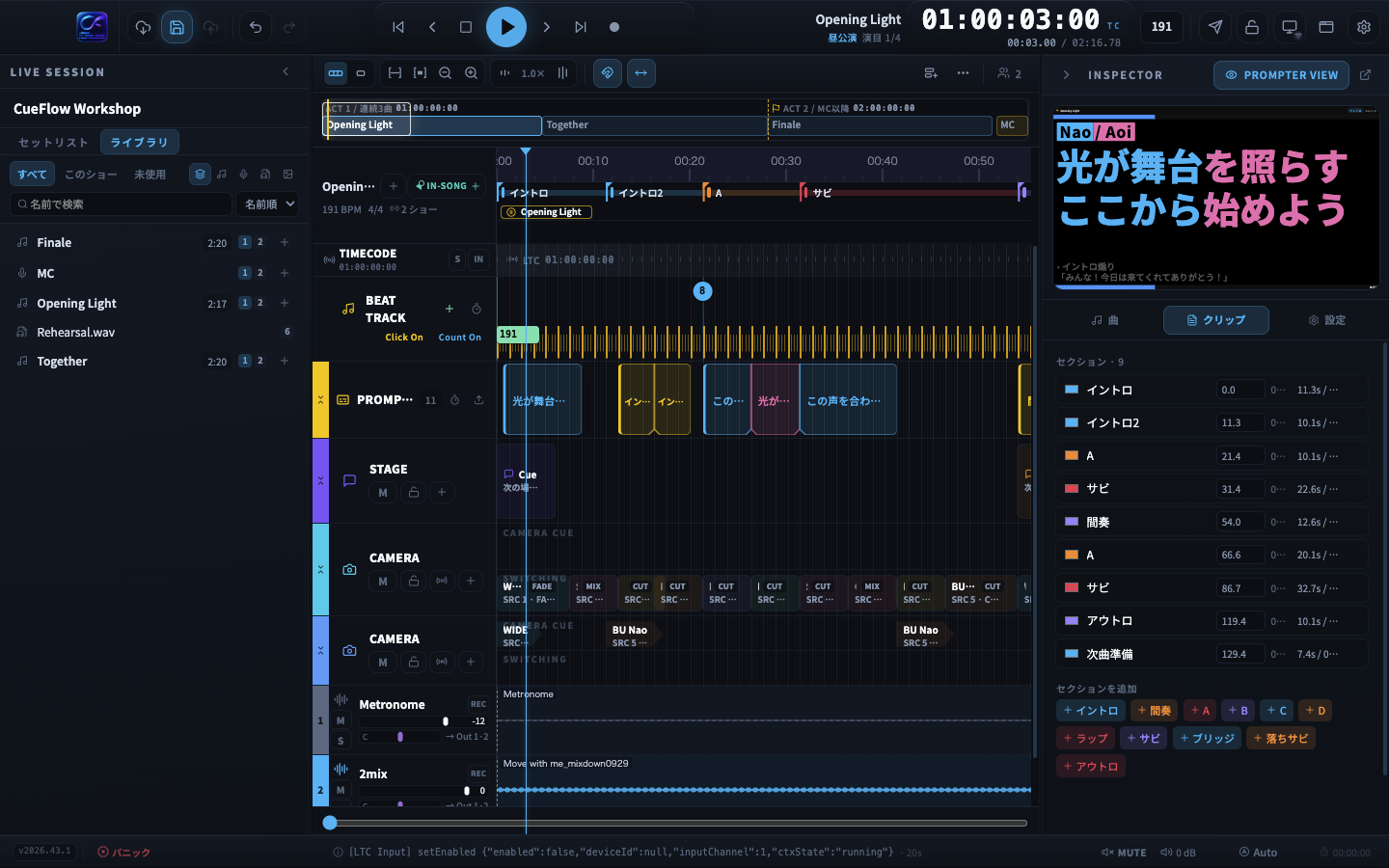
- Shared songs display their show count beside BPM in the timeline. Hover for show names or inspect the song to see where it is used. Outside the main show, start mode (continue or stop and wait) can be set separately for each occurrence.
- Removing an item from this show leaves its song in the library. Deleting from the library also removes its occurrences in shows: review the affected shows in the confirmation dialog.
Organize shows side by side
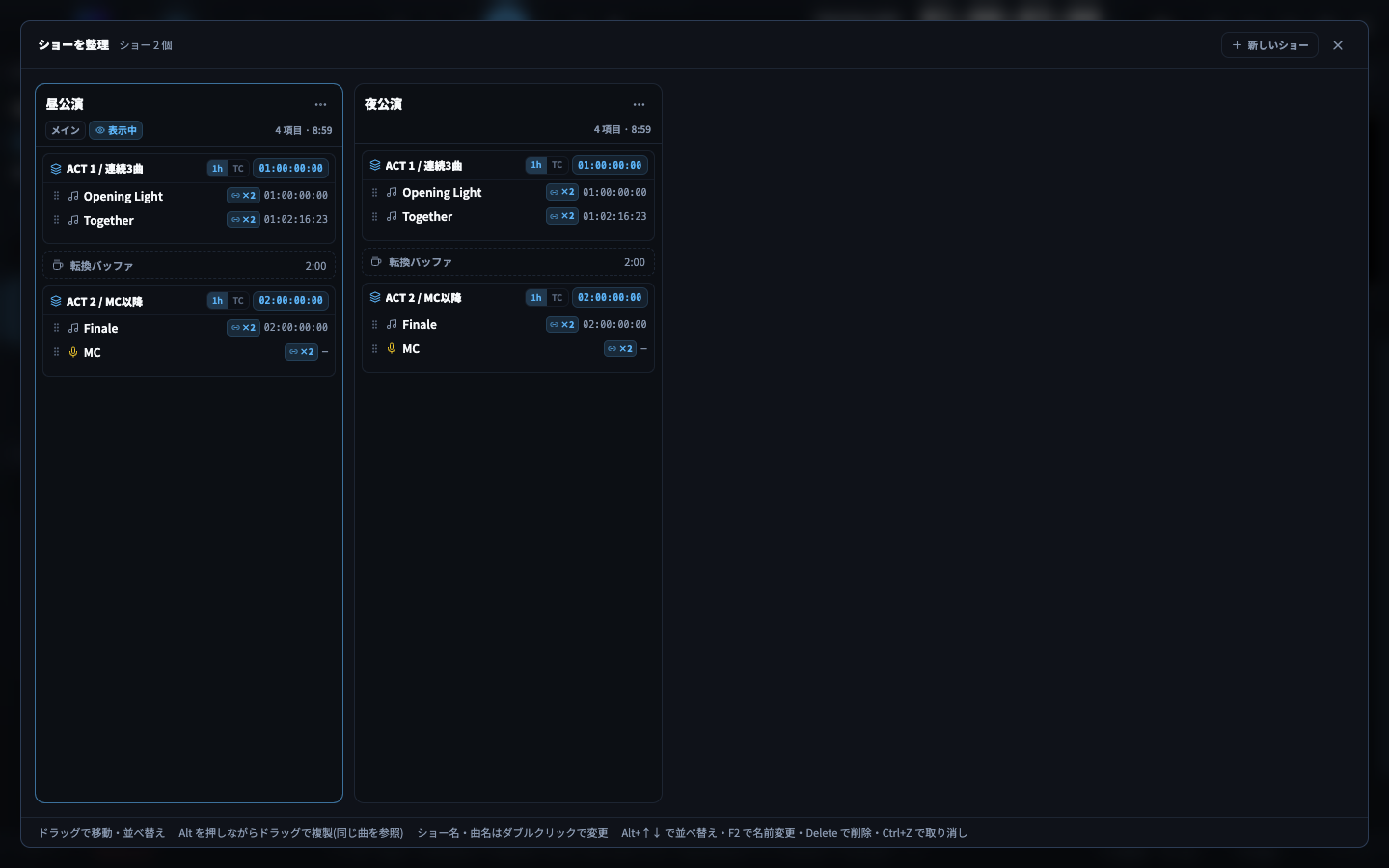
- Choose Organize Shows from the show-name menu. Each show appears in a column with blocks, songs, MCs, breaks, and start timecodes.
- Drag to move or reorder; Alt-drag to copy. Choose between a copy referencing the same song and an independent song copy. Double-click names to rename, and edit block starts in the 1h / TC fields.
- The playing or timecode-chasing show cannot be reordered, moved, deleted, or have its start times changed. Copying to another show remains available.
Find and preview library content
- The Library tab lists songs, MCs, audio files, and images. Search by name, sort by name or addition order, and filter by type, This Show, or Unused. Imported songs show their source project name.
- Navigate with ↑↓ / Home / End, add songs and MCs with Enter, delete with Delete, and open the context menu with Shift+F10. Preview audio with its play button, Preview in the context menu, or P. Preview uses the OS default output and stops when show playback or recording starts.
- Drag audio files to audio lanes and images to the prompter lane. Missing-file badges and usage counts help locate media problems.
- The audio-file context menu can delete a file even while it is in use, after confirmation. Usage includes unsaved edits, and the dialog counts clips that will become missing. Relink those clips to another file to recover them. File deletion is blocked during playback or recording. This deletes the actual file, so review its uses; removing a song from a show is a separate operation.
- Rename audio with Rename in the context menu, F2, or a double-click. Ordinary local files are renamed on disk, all clip references are updated, and the project is saved automatically; this cannot be undone. Cloud or content-hash files change only their display name, which can be undone. Renaming is unavailable during playback, recording, or edit lock.
Inspect a song without adding it to a show
- Right-click a song and choose Open in Timeline (without adding to show). The header displays an Outside Show badge. Edits are saved to that song.
- Timecode output, cue firing, performer displays, and Video Monitor broadcasting are suspended during this temporary view. Use + to add the song to the active show, or × / a setlist selection to return. You cannot open the temporary view during playback, timecode chase, or recording.
Import from another project
- Choose Import Songs from Project in the setlist menu, select a local .cueflow file or a cloud project, then choose songs, MCs, and a destination block in the active show (or a new block). Save the destination project before importing from the cloud.
- Cloud destinations accept imports from the same workspace. Local destinations can import from workspaces you belong to. Imported songs are independent copies, not ongoing links to the source project.
- Review audio-track assignments. Use Change to choose an existing track, a new track, or Do Not Import. Resolve ambiguous assignments and track limits before proceeding. Audio and lyric images are copied or downloaded; video and cloud comments are not imported. Undo leaves copied audio files in the project folder. Unsupported projects saved by a newer version are rejected with an explanation.
Merge and split songs
- Right-click consecutive songs in the same block and choose Merge with Next Song. This creates a new song with In-Song dividers named after the originals; the originals stay in the library. The range cannot include an MC or a song excluded from timecode.
- Use Split Here or Split at All In-Song Dividers to create separate songs. Restore Original Songs is available when its conditions are met, but edits made to the merged song are not transferred back to the originals.
- Before confirming, review stops becoming continuous playback, overlapping audio beyond EoS, and cuts to fades or video. Merging does not automatically add crossfades. Song merges and splits can be undone, but cloud-comment position changes made while online are not reversed by Undo.
Collaborating with older versions
Update every collaborator to a version that supports multiple shows. Older apps may show only the main show and may neither display nor send song-owned cues. If the cloud requests an update, update before reconnecting.