Settings
Settings
Open the settings panel with the gear icon in the header or ⌘,. App-wide settings and per-project settings are organized into tabs.
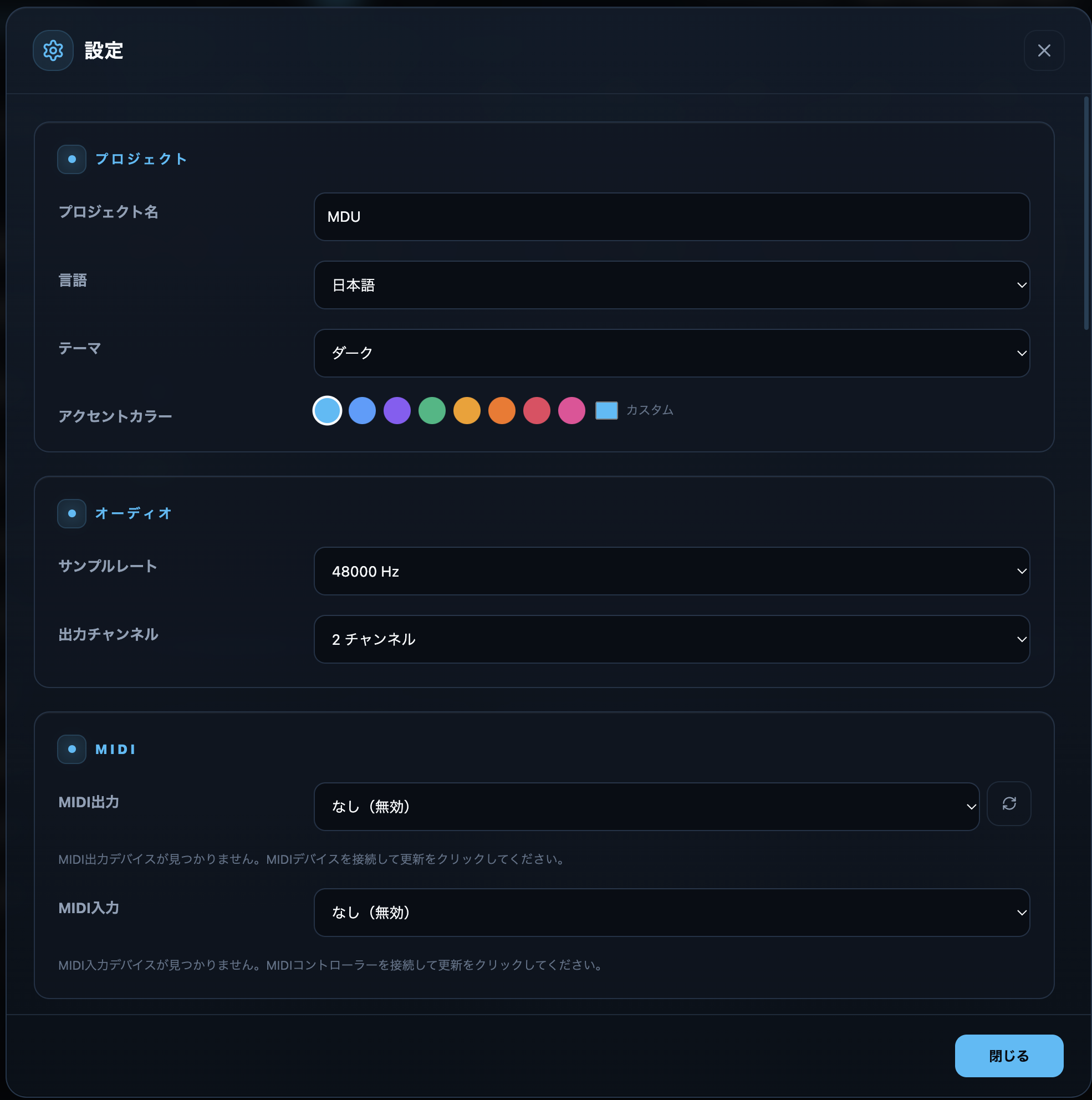
Settings tabs
| App settings | Contents |
|---|---|
| Basic settings | Language (Japanese / English, no restart needed), theme (dark / light / system), accent color, Cloud Collaboration (this machine’s device name plus the signed-in cloud account’s display name, emoji avatar, color, and email), the timeline zoom anchor (set separately for keyboard and mouse wheel), and Memory Locations pre-roll. |
| Auto save | Enable auto save, interval (default 300 seconds), max backups, and backup-on-save. Backups are kept in the Backups/ folder, and recovery is offered after an abnormal exit only when the previous auto save is newer than the normal saved file. |
| MIDI | MIDI output / input device selection and trigger settings. |
| AI Importer | The AI used to build song data, All-in-one local analysis install/enablement, audio analysis mode (local / cloud / custom), credits estimate, and analysis logs. |
| Plan & License (License & Usage) | Current plan, license status, and a feature table; activation key entry; the activated-device list and deactivation (including other machines, e.g. a lost PC); and AI usage. If you lost the key and cannot use this screen, reissue it and deactivate devices on the web License Recovery page. Change your cloud account email under Basic settings ▸ Cloud Collaboration; see Organizations & Plans for billing. |
| About CueFlow | Version info, update check, and the update channel. |
| Project settings | Contents |
|---|---|
| Project | Project name, language, theme, and accent color (per-project overrides). |
| Devices & Timecode | Project-wide settings such as audio device, sample rate, output channel count, frame rate, and MTC / Art-Net output. If the saved device is missing, CueFlow uses the current default device; sound routed to outputs that do not exist on the current device stays silent. Configure LTC send, LTC / MTC / Art-Net receive, chase mode, and input levels from the Timecode track in the timeline. |
| Cue Targets | Manage cue destinations (per-performer / staff views). |
| MC Templates | Register reusable MC text templates. |
| Prompter Server | Prompter sharing, port (default 17321), and network sharing. |
When you do not have your license key
Two of the actions on the Plan & License tab — reissuing the key and deactivating an activated device — are also available on the web License Recovery page. It emails a recovery link to your registered address, so it works even when you cannot activate the app. Open License Recovery →
Language
The UI is available in Japanese and English and switches instantly without a restart; the menu bar is rebuilt in the selected language too. The website and this manual share the same two languages.
Device name and cloud account
The “Cloud Collaboration” area of basic settings holds both this machine’s device name and the settings for the cloud account you are signed in to. The device name is auxiliary information shown to other members during cloud co-editing. Your co-editing display name comes from your cloud account; the device name is appended as “· device name” in member lists. Names like “FOH main” or “backup laptop” make devices easy to tell apart.
Cloud account display name, icon, and email
While signed in, the same “Cloud Collaboration” section lets you set the display name, emoji avatar, and color shown across all of your projects, and change your account email. Because these belong to your account rather than to one machine, you appear the same way in member lists and comments no matter which device you open a project from.
When you replace the email address and save, a confirmation email arrives at the NEW address. The registered address stays as it was until you open that link within 24 hours. Because the confirmation goes to the new address, you can finish the change from this screen even when the old mailbox is gone — after leaving a company or retiring a domain. Once confirmed, a notice also reaches the previous address, and an unrecognized change can be undone from it within 14 days. Full steps in Organizations & Plans →
Checking for updates
- Update check — Use Check update on the About tab to find the latest version and download/install it without opening the website.
- Update channel — Choose Public (stable, recommended, default) or Developer (beta / early builds).
- Release notes — Before updating you can review the changes between your version and the latest; the first launch after updating shows what was applied.
- Signature verification — Only updates whose manifest passes Ed25519 signature verification are ever applied.
- Diagnostics — Update diagnostics (manifest URL, feed trust state, etc.) appear only when you expand “Show diagnostics”.
- Version & app info — The “Version & updates” and “App info” sections show the current version, channel, and build details.
Cloud settings and local copies
Cloud projects open without choosing a local file. When opened, they are also saved on this machine, and CueFlow reuses that local copy the next time you open the same project.
- “Saved locally” badge — In the cloud project list, projects that are also saved on this machine carry a “saved locally” badge.
- Remove from this device — “Remove from this device” deletes only this machine’s copy. The cloud data remains and is downloaded again the next time you open the project. The currently open project cannot be removed.
- Cloud account — Your shared display name, emoji avatar, and color shown across all projects — plus your account email — are changed under Basic settings ▸ Cloud Collaboration. See Cloud Collaboration for details.
Tip
Auto save defaults to ON / 300 seconds / 5 generations. Before a show or a large edit, shorten the interval as needed. After an abnormal exit, the next launch offers to restore unsaved changes only when the previous auto save is newer than the normal saved file.