Audio
Audio & Routing
CueFlow’s native audio engine supports multichannel output. Every track, the click, the count, and LTC can be routed freely to physical output channels.
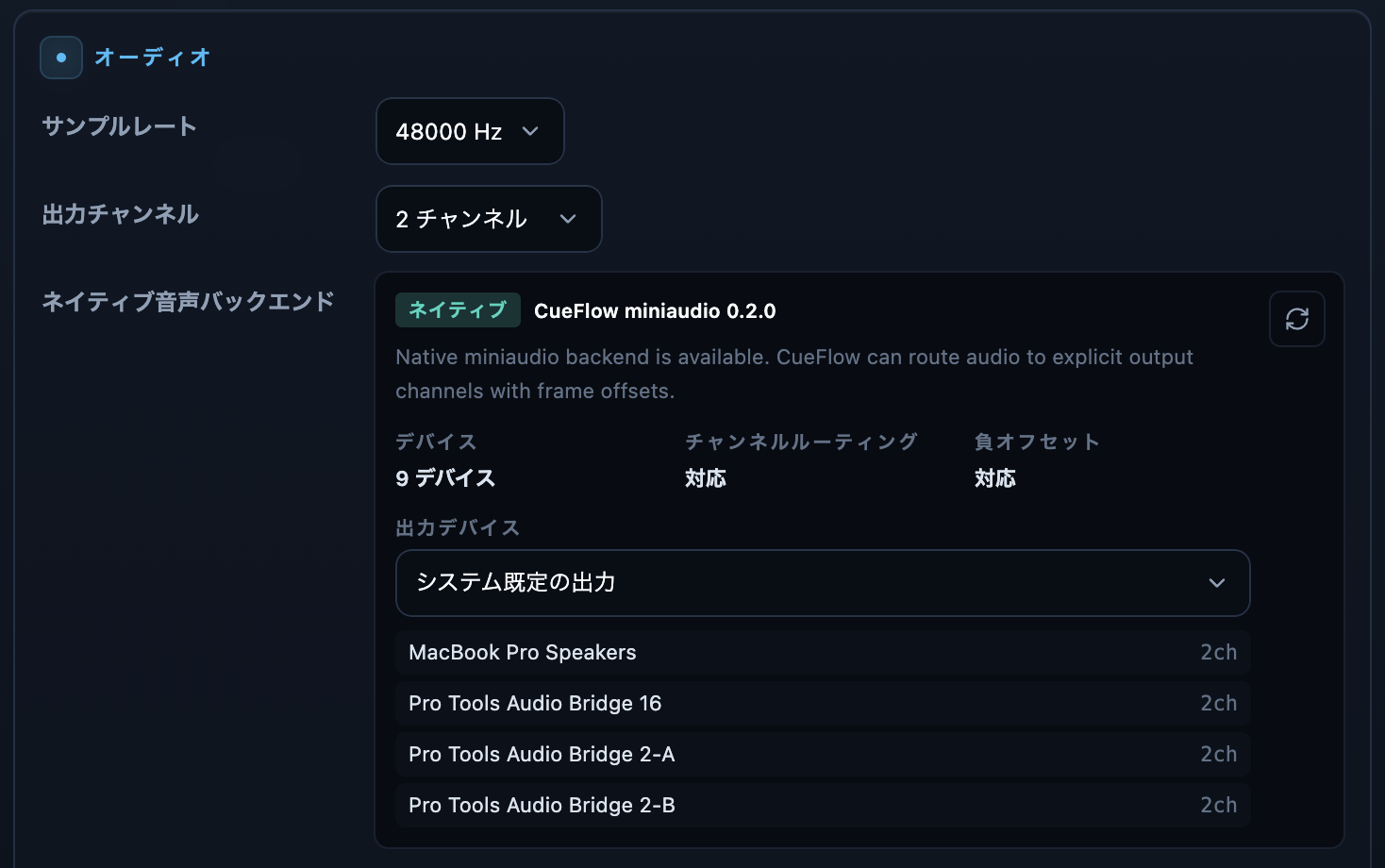
Devices and multichannel
Choose the audio device, sample rate, and output channel count under “Devices & Timecode” in Settings. Multichannel devices are detected with their real maximum channel count (e.g. 16ch), selectable in the output channel setting. If the saved device is not present on this machine, CueFlow automatically uses the current default device for playback. Sound routed to output channels that do not exist on the current device stays silent on this machine. The saved device name and routing remain in the project, so the original routing comes back when that interface is connected again. Multichannel output, delay, and EQ run on the native engine. If the native engine is unavailable, CueFlow switches to stereo playback. Note that multichannel output and timecode sync require the Pro plan or above (Free is limited to 2ch and 2 audio tracks).
The Audio Routing window
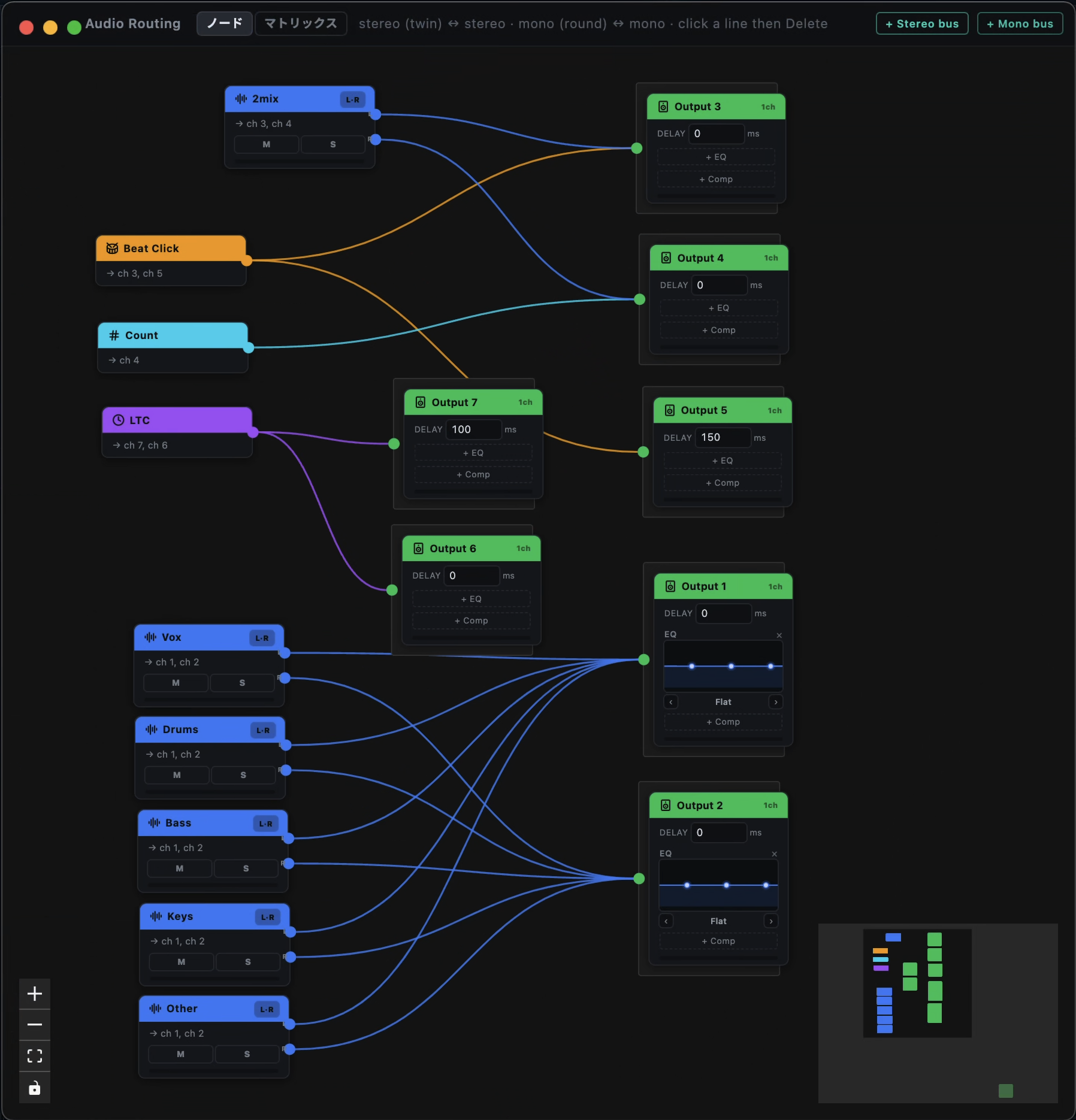
Routing is edited in the standalone Audio Routing window. Open it from the header’s Audio Routing button, the View → Audio Routing menu, or ⌘⇧R. The window has two tabs.
- Node editor — A graph view where you drag connections from sources (each audio track / Master / Click / Count / LTC) to output channels, making the signal flow easy to see.
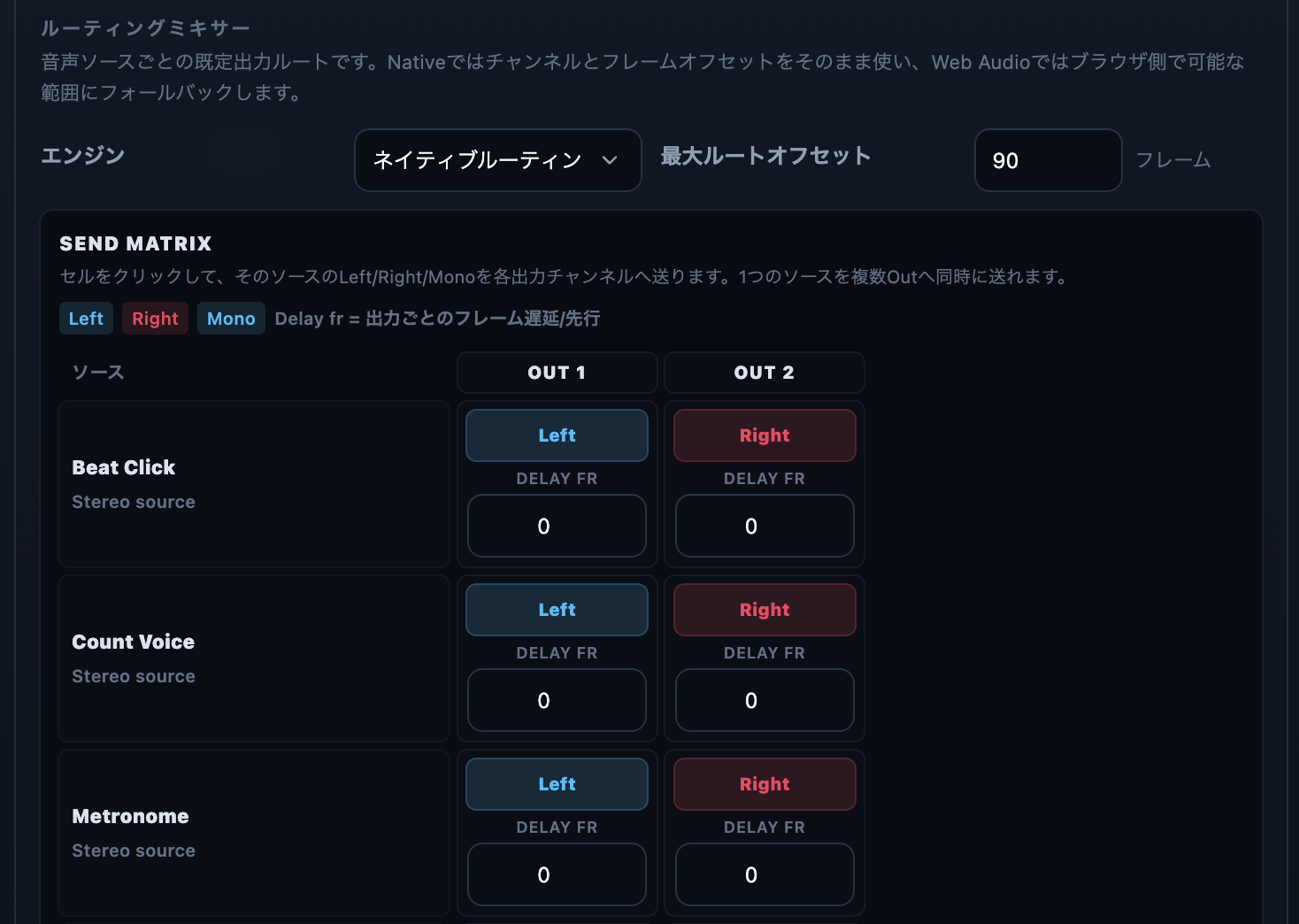
- Matrix — A grid view of the same routing. Clicking a cell cycles how that source feeds the output — Left / Right / Mono — and one source can feed several outputs at once. Buses can also be selected as input sources, enabling bus chaining (bus → bus).
Per-output delay and EQ
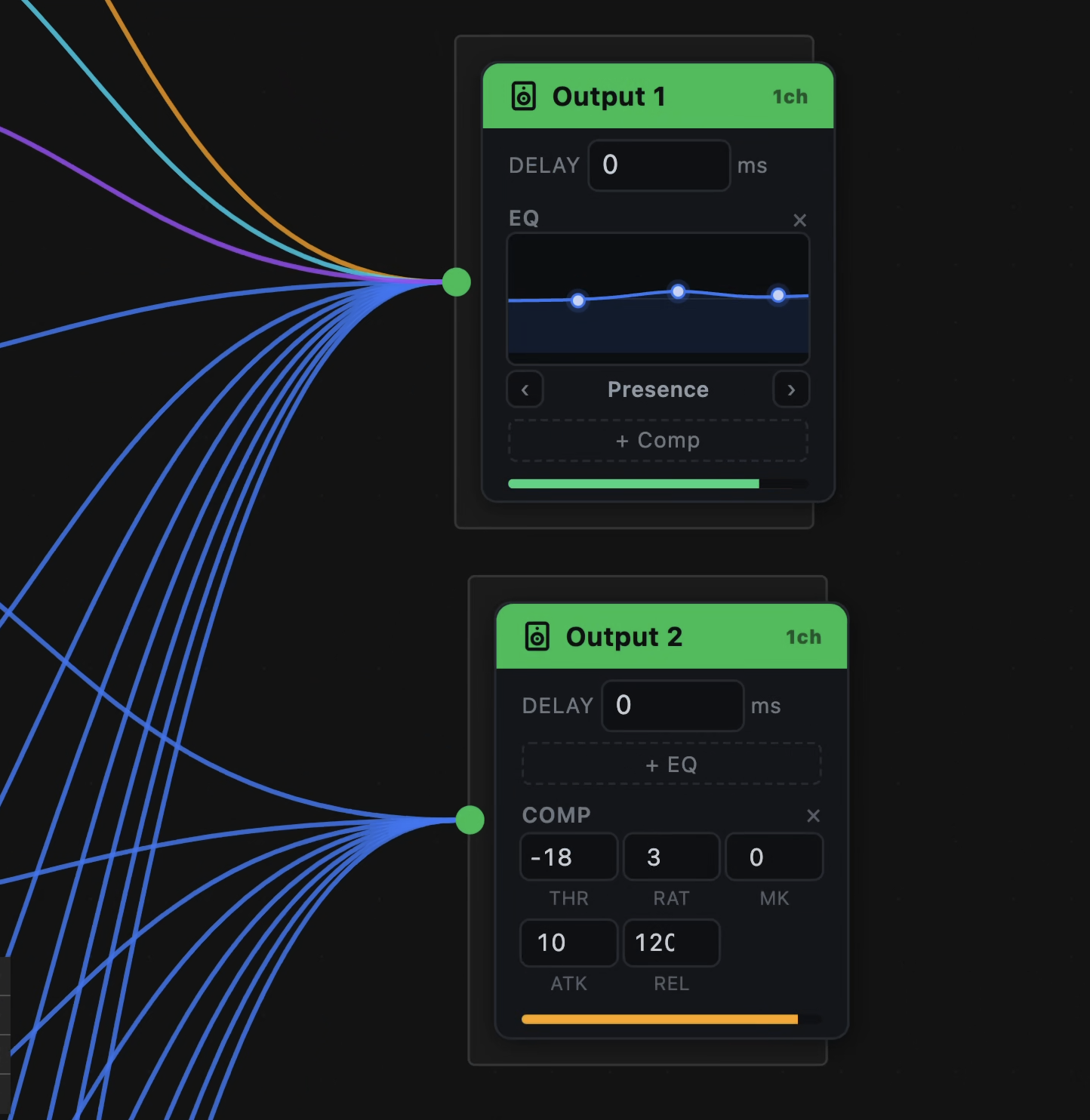
Each output can carry a delay for speaker alignment (10 ms steps), a graphical 3-band EQ, and a compressor. The matrix tab additionally offers per-output delay/advance in frames.
EQ and compressor
Open the EQ / Comp button on any output node to edit a 3-band EQ and a compressor. Shape and protect the sound for the room or the desk entirely inside CueFlow.
- 3-band EQ — Adjust the Low / Mid / High bands while watching a response curve. Presets such as “Presence” get you in the ballpark quickly.
- Compressor — Set THR (threshold) / RAT (ratio) / MK (make-up gain) / ATK (attack) / REL (release) with knobs to even out click and 2mix levels and tame sudden peaks.
Click and count routing
Beat Click, Count Voice, and Metronome are independent sources, so you can build classic show routings — click only to performer monitors, 2mix only to the PA, and so on.
Timecode I/O
Timecode send and receive are configured from the Timecode track inspector in the timeline. CueFlow can output LTC as an audio signal to any physical output, output Art-Net Timecode, and receive/chase LTC, MTC, or Art-Net. LTC routing is set with the Output 1 shortcut or the Audio Routing window.
- Frame rates — 24 / 25 / 29.97 / 30, including drop-frame (29.97df) counting.
- Send settings — Enable LTC Output / Art-Net Timecode Output on the Timecode track. LTC level, Solo, and Output 1 / Audio Routing are shown in the same panel.
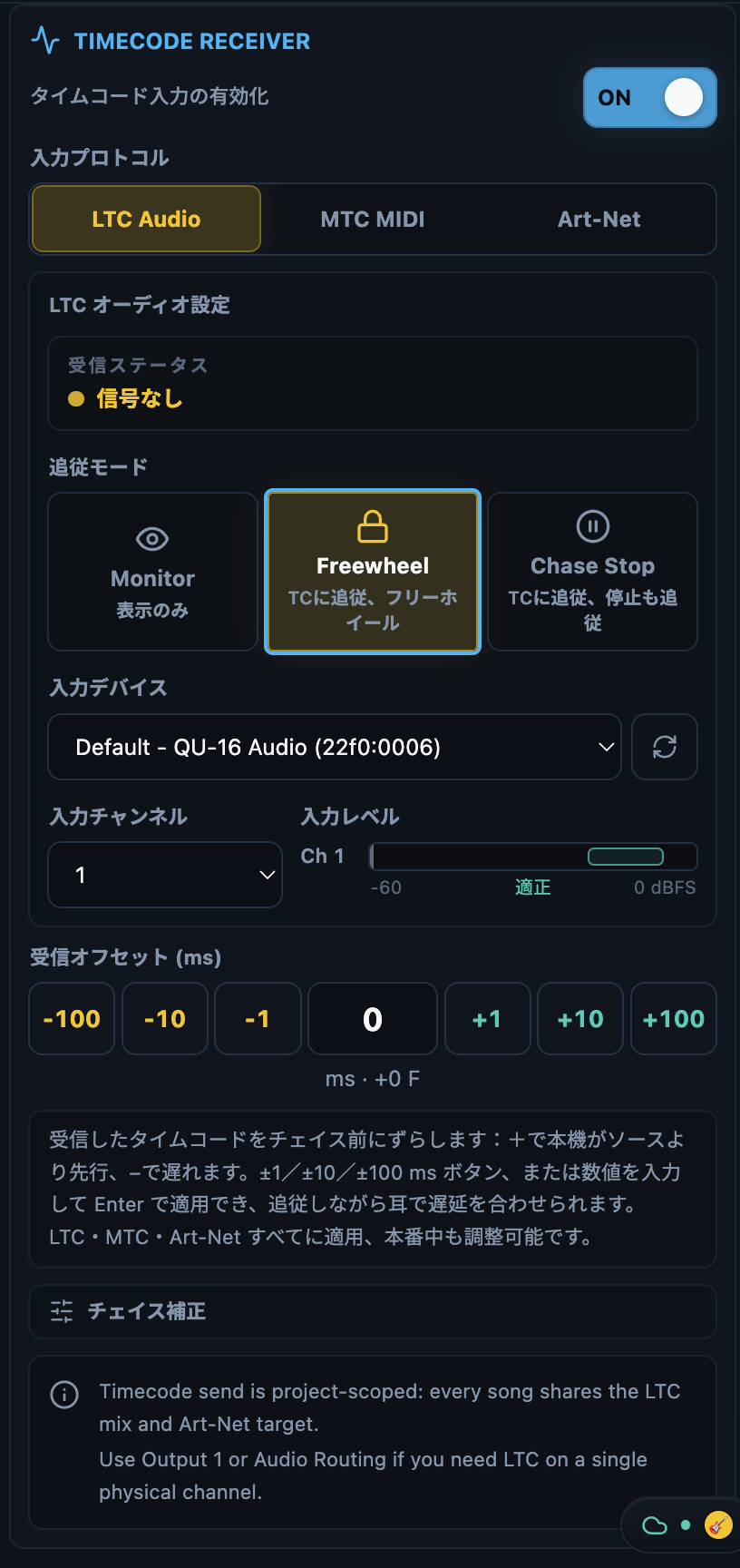
- Receive protocols — Choose exactly one of LTC Audio / MTC MIDI / Art-Net. The inspector also shows receive status, detected format, LTC input device/channel, and per-channel input meters.
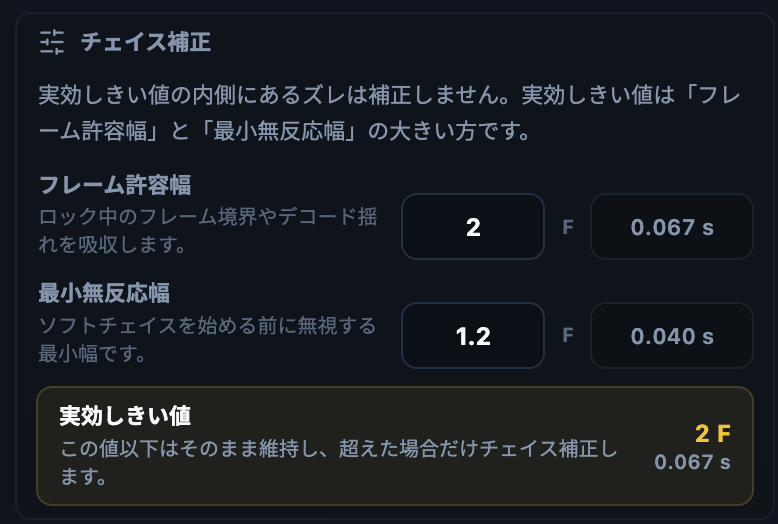
- Chase modes — Choose Monitor / Freewheel / Chase Stop. While chasing, tune receive offset, frame tolerance, and minimum deadband; if incoming TC belongs to another program, CueFlow moves to that program and position. Small locked drift follows the external clock with continuous rate correction instead of sudden jumps.
- No double output — While the native engine is playing, the fallback LTC generator is stopped automatically so LTC is never output twice.
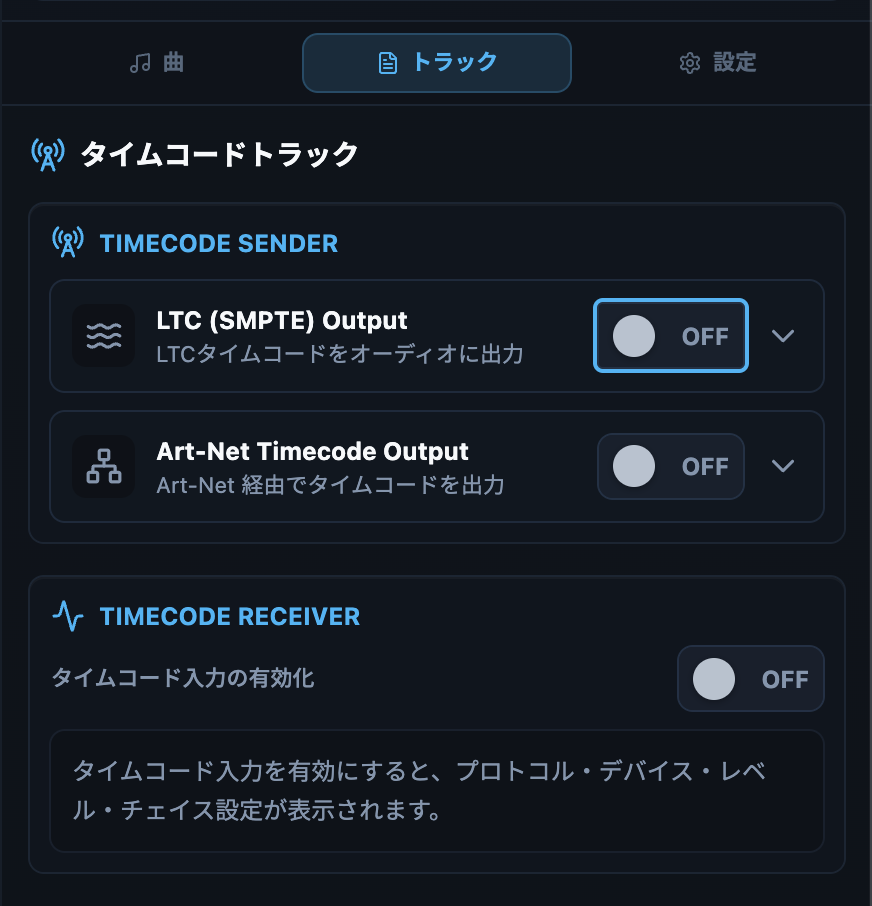
Sending: LTC / Art-Net
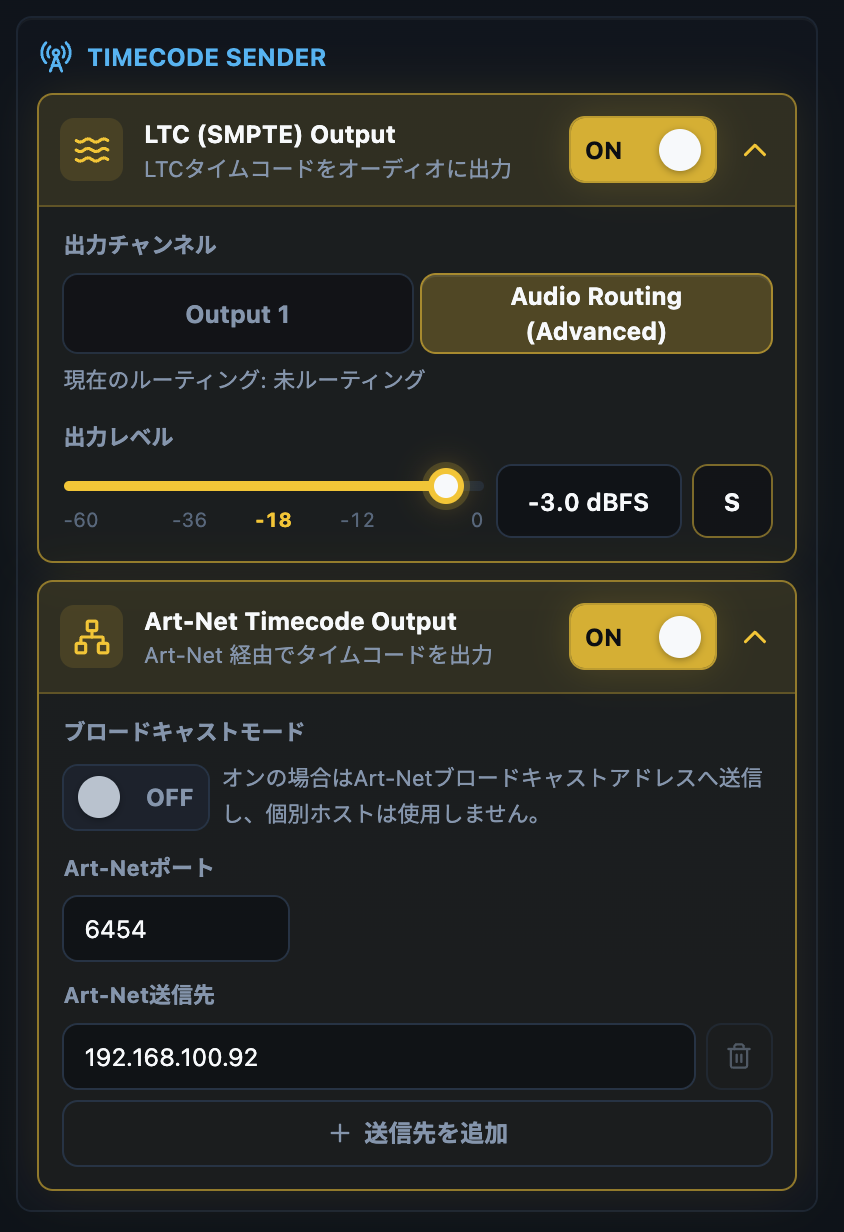
The send section lets you enable LTC Output and Art-Net Timecode Output independently. Active outputs are highlighted in yellow. For LTC, the same panel holds the output channel, Audio Routing shortcut, output level, and Solo. For Art-Net, set broadcast mode, port, and individual destinations. Across an automatic song change, the sent timecode (LTC / MTC / Art-Net) never rewinds: at the previous song’s end all three streams hold a still frame, then resume moving forward together the moment the next song’s audio starts, so downstream lighting and video stay in sync.
Receiving: LTC Audio / MTC MIDI / Art-Net
Receiving is exclusive: choose one of LTC Audio / MTC MIDI / Art-Net. With LTC Audio, the panel flows from receive status to chase mode, input device, input channel, level meter, receive offset, and chase correction.
Chase correction
Chase correction absorbs small lock jitter while following the external clock naturally. Frame tolerance absorbs decoded boundary jitter; minimum deadband ignores tiny differences before correction starts. When drift exceeds the effective threshold, CueFlow corrects with continuous rate adjustment where possible and only resynchronizes directly when the difference is too large.
Caution
The PANIC button (⇧Esc) forcibly disables timecode I/O and persists that state, so timecode cannot resume unintentionally after an emergency stop. Re-enable it explicitly from the Timecode track inspector. Timecode I/O is also suspended automatically during Slow Mode.
Tip
A classic show setup keeps LTC and the click on physical channels separate from the PA 2mix. The matrix tab shows every source’s destinations at a glance, which makes pre-show checks much faster. To review receive settings, select the Timecode track in the timeline and open its inspector.