Cloud
Cloud Collaboration
CueFlow Cloud shares projects within an organization for simultaneous co-editing, comments, and version management. Open a cloud project on any device and you always get the latest version, ready to edit together live. If the connection drops for a moment it reconnects and resyncs on its own — co-editing no longer “stops after a couple of minutes” — and nothing is lost when several people edit at once. Direction, audio, and camera staff can finish the same project in parallel.
Organizations, plans, and billing
Organization management, roles, the organization-management dialog, plans (Free / Pro / Team / Enterprise), AI credits, seat changes, and billing are covered in detail on the dedicated Organizations & Plans page.
Saved versions and co-editing
Cloud projects create saved versions whenever you press ⌘S or sync to the cloud. Saved versions can be listed and restored at any time. During co-editing, connected members see changes as they happen, and each save turns the current work into a new version. Changes travel as small incremental updates, so when several people edit at once nobody’s work is silently lost — reorders and field edits from each person merge cleanly. Organization ownership and cloud enablement are separate: choosing an organization alone does not connect the project to co-editing. Only projects with “Enable cloud project” turned on sync to the cloud and join co-editing.
Accounts and profiles
Cloud co-editing requires an organization on the Team (or Enterprise) plan. Owning one takes a Team subscription, but JOINING another organization’s project needs neither a license nor a payment: Viewer / Commenter join as guests, and Editors join with a free CueFlow account (email verification only). The seat belongs to the inviting organization. You set your display name, emoji avatar, and color in Settings ▸ Cloud Collaboration (license holders can also change their registered email there). Member lists, comments, notifications, and the operator display always show names (falling back to a masked email and then “Member”) — management IDs are never shown on screen. If no display name is set on first use, a profile dialog appears.
Organizations and seats
Cloud projects belong to an organization (e.g. “Composition Inc. - Internal”). Roles work on two levels: organization roles (Owner / Admin / Member) grant access to every project in the organization, while project roles (Editor / Commenter / Viewer) apply to one project only. An organization owns seats, and members join via invite codes. One seat = each Owner / Admin / Member, plus each distinct project Editor, deduplicated across the whole organization: a person who is an Editor on two projects, or who is both an org member and a project Editor, still counts as one seat. An Editor invite uses one seat when it is accepted — not when it is sent. Commenter / Viewer never consume a seat (free and unlimited). Owners / Admins can rename the organization, change roles, transfer ownership, and review the audit log. The organization-management dialog lists organization members and project-invited members separately, each with its seat usage, alongside a pending-invite list you can revoke and the current plan, seats in use, cloud storage, and AI credits (see the Organizations & Plans page). If you belong to several organizations, switch the active one from the organization switcher in the header.
Saving and syncing a project
- New-project cloud checkbox — The “Enable cloud project” checkbox next to the organization picker defaults on. Turn it off to create an organization-owned local project that attributes AI usage and billing to the organization without cloud sync or co-editing.
- Enable cloud project — The first-time step that starts saving the project to the cloud. Pick the organization to enable it; your local file remains as this machine’s working copy.
- ⌘S = save + sync — On a cloud-enabled project, ⌘S saves on this machine first, then waits for the cloud save to finish. If the cloud save cannot complete, the local save remains and CueFlow shows that the project is saved locally but not yet synced to the cloud.
- Sync progress — During cloud sync, CueFlow shows progress for file checks, uploads, and version creation. Files that are already in the cloud are not uploaded again, so repeated syncs are faster.
- Lock for show — A cloud-save option that marks the saved version as the show version. When this succeeds, the device’s Lock Mode is enabled automatically.
Opening cloud projects
Cloud projects open without choosing a local file. The project is also saved automatically on this machine. The setlist, tracks, clips, and prompts load first so you can work immediately, while audio downloads in the background. Clips whose audio has not downloaded yet appear dotted with a “downloading audio...” label, and the cloud status in the bottom-right shows progress (n/N).
- “Saved locally” badge — Projects that are also saved on this machine show a “saved locally” badge in the project list, and “remove from this device” deletes only this machine’s copy (the cloud copy remains).
- Recent projects — Cloud projects appear in Recent Projects as “☁ session name” and reopen with a single click — no file path involved.
- Auto connect — Opening a cloud project automatically connects to co-editing.
Important: connect safety check
Before joining co-editing, CueFlow checks whether the cloud copy and this machine’s copy still match. If the cloud copy is newer, or if the two copies have the same save number but different contents, CueFlow stops the connection and shows a comparison dialog with summaries for each side, including show length, song count, MC count, and setlist items. Alongside “Open the latest version” and “Connect and overwrite with this content,” you can merge by choosing the cloud or local side for songs, MCs, cue/shot tracks, settings, and setlist structure. If you need time to inspect the project, choose “Hold and return to editing,” then resume from the warning in the header. If this machine has songs or tracks but the cloud copy appears empty, CueFlow warns before applying it and blocks the overwrite. When in doubt, choose “Open the latest version”.
Live co-editing
CueFlow syncs each editing area separately: the setlist structure, each song’s prompter, each song’s mix, each MC, each cue track, and each shot track. Members editing different songs or different tracks can work in parallel. If two people edit the same place at the same time, the change saved later takes priority.
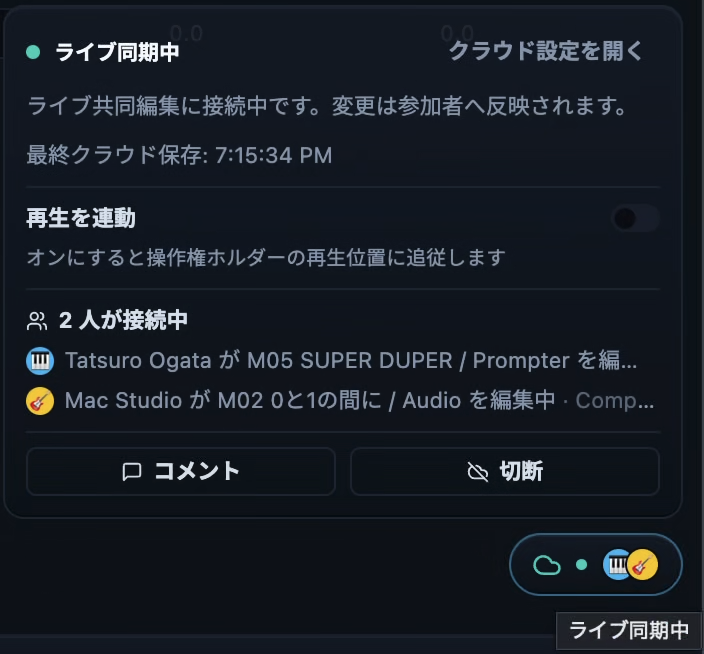
- Presence — The cloud status in the bottom-right shows connected members as emoji avatars with their colors (up to four, plus a remainder count). Hover to see what each member is editing.
- Soft-lock warning — If you edit an area another member is working in, your change is held and a “⟨name⟩ is editing …” warning appears. Only continue explicitly via “Edit anyway” when needed.
- Undo history preserved — Receiving changes from other members does not clear your undo history; only operations that genuinely conflict are skipped, with a notification.
- Change history — Who changed what, when, and from which device (edits / undo / restore / save) is recorded per project in the cloud.
- Sync opt-out — Next to “Link playback,” the cloud status offers a “Sync Solo/Mute & LTC state” toggle (on by default). Turn it off to keep each track’s Solo/Mute, the Click/Count on/off, and the LTC I/O settings (receive protocol, chase, LTC/MTC/Art-Net output, etc.) local to this device — so you can audition other audio during co-editing without touching the show desk. A banner at the top of the audio, Timecode, and Beat inspectors toggles the same setting. It is per-device; volume, pan, and other values keep syncing as before.
Version history and restore
- Named saved versions — When saving to the cloud, you can name the saved version and pick its type (normal / checkpoint / show).
- Restores are new versions — A restore is always saved as a new version — past versions are never rewritten. Restoring broadcasts an explicit notice to collaborators.
- Read-only preview — Open any past version as a temporary copy that cannot affect the cloud.
- Selective restore — Restore only chosen parts — songs, MCs, cue/shot tracks, settings, or the setlist structure — from a diff view.
Comments
Comments can be anchored to a time on the timeline or to targets such as prompt blocks, audio clips, sections, MCs, and cue/shot tracks.
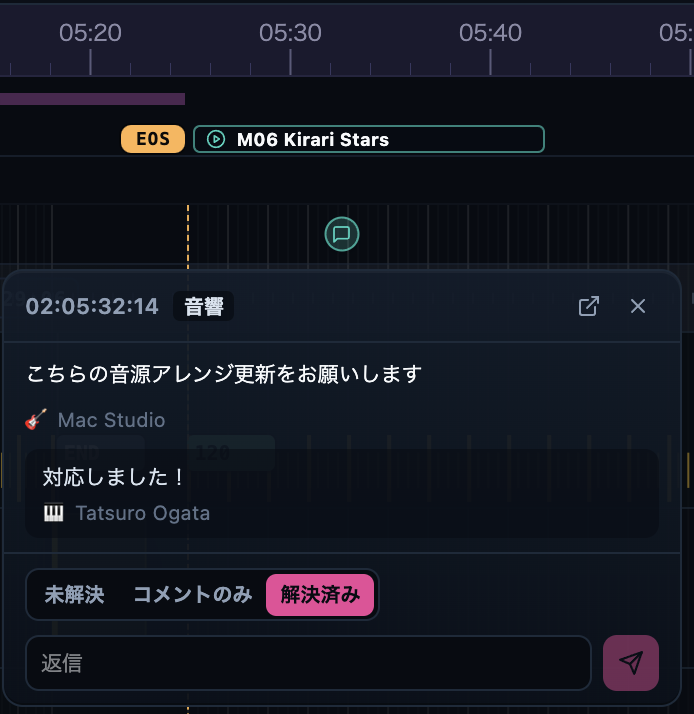
- Comment lane — Markers appear in the comment lane at the top of the timeline. Click for a popup with the text, replies, and status; double-click to add a comment at that time.
- Drag to retime — Markers can be dragged; the new time is saved to the cloud (by the author or an organization member with edit rights).
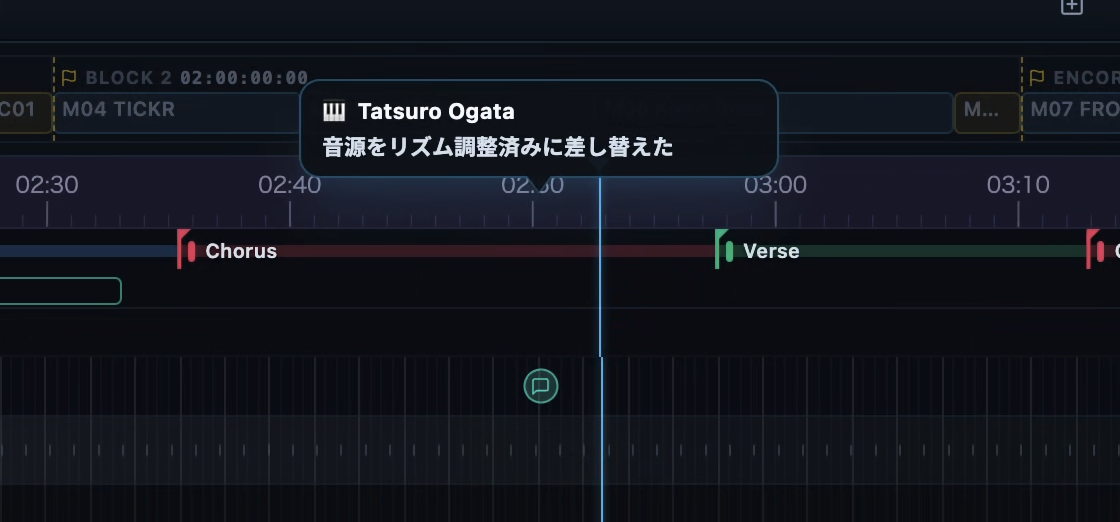
- Playback bubbles — When the playhead passes a marker during playback, a small bubble with the author and text shows for about five seconds.
- Comments window — A standalone window with search and filters (unresolved only / mentioning me / my comments / current selection). @mention members to notify them.
- Follows re-anchoring — Comments automatically follow setlist reorders, changes to a previous program’s length, EoS shortening, and In-Song ripple moves (Alt-drag); comments anchored to MC blocks follow the same way. Anything past the new EoS or a timecode-block boundary is pulled onto that boundary so it never points at an unreachable time.
- Deleting a program with comments — Deleting a program that has comments prompts a three-way dialog — delete the program with its comments / move the comments to another program / cancel. Choosing move lets you pick the target song, and each comment keeps its in-song relative position (anything past the target EoS collapses onto it). Comment deletes and moves apply to the cloud immediately and are not covered by Undo (⌘Z).
Permissions: roles and per-area access
Access is managed on two levels — the organization role, and a per-area checkbox matrix. Everything lives in one “Cloud project settings” dialog: an Overview tab and a “Share & invite” tab (which shows a seat chip on each invite — Editor = 1 seat, Commenter / Viewer = free), plus the per-area matrix, which appears inline when you open “Advanced permissions” (no separate window opens). The old separate “Cloud access” and “Share” windows are merged into this one dialog. The role list and permissions are also summarized on the Organizations & Plans page.
| Role | Summary |
|---|---|
| Owner | The organization owner. Everything an Admin can do, plus ownership transfer. |
| Admin | Manages members, access rights, and organization settings. |
| Editor | Can edit the project. The per-area matrix defaults to all areas editable. |
| Commenter | View and comment only. Cannot be granted edit or operate rights directly. |
| Viewer | View only. |
| Area | Covers |
|---|---|
| Prompter | Editing prompt blocks and MCs |
| Cue track | Editing cue tracks and cues |
| Shot track | Editing shot tracks (camera / switching) |
| Mix / Setlist | Editing audio, mix, and the setlist structure |
| Operate | Transport control (play / stop, etc.) |
Each member gets a checkbox per area. Editors default to everything editable; unchecking an area makes it view-only for that member. Trying to grant edit/operate rights to a Commenter or Viewer shows a “promote to Editor” confirmation first, and CueFlow applies the same rule when changes are saved.
Operator control (Master Lock)
For show time, an owner or admin can engage Master Lock to freeze the project on a chosen saved version. Once it is engaged, everyone else becomes read-only and editing is temporarily locked, and playback follows the member holding the lock so the whole crew sees the same position. It is built for show and FOH use and never expires on its own (a fail-safe so it can’t come off by accident). Releasing the lock returns everyone to normal editing.
When someone is actively editing a program, a quiet “⟨name⟩ is editing” note appears in the member list and on the program. It is informational only — it does not block what you are doing.
If the member holding operator control crashes or disconnects, every device detects the lapse automatically, clears the stale holder, and re-enables “Take operator control” (previously the holder could linger and block others from taking it). Owners and admins also get an “operator is not responding” notice from which they can take control, or release an unresponsive Master Lock holder’s lock (with a confirmation). After confirming, an owner or admin can force-take operator control even while an unresponsive member still holds it.
Outside Master Lock, in normal co-editing, playback defaults to independent: every device drives its own local transport freely. A device that wants to follow another member’s playback position can turn on follow mode (“link playback”) from the cloud status in the bottom-right.
Detaching from the cloud
To turn a cloud project back into a plain local project, use File → “Save with Assets (Detach from Cloud)...”. A confirmation dialog appears first; the saved folder becomes an independent project no longer linked to the cloud.
Billing and seat purchase
Owners / Admins buy seats or change plans from the organization-management dialog. The cloud pill in the bottom-right opens “Cloud project settings” and “Organization settings” directly. Plans, AI credits, storage, and billing are explained in full on the Organizations & Plans page.