Prompter
Prompter
The prompter delivers lyrics, guides, and stage directions to performers and crew. The editor preview, pop-out windows, and every networked device all show the same synchronized content.
Prompt blocks and line attributes
A prompt block is a timed display unit; each text line becomes one prompter line. Double-click the prompter lane to create a new block; even an empty block shows a faint placeholder so you can click and start typing immediately. How a line renders is decided by its per-line attribute.
| Line attribute | Use | Rendering |
|---|---|---|
| Lyric | Normal lyric lines | Displayed large, with performer colors and chips |
| Guide | Notes for performers | Rendered as secondary guide text |
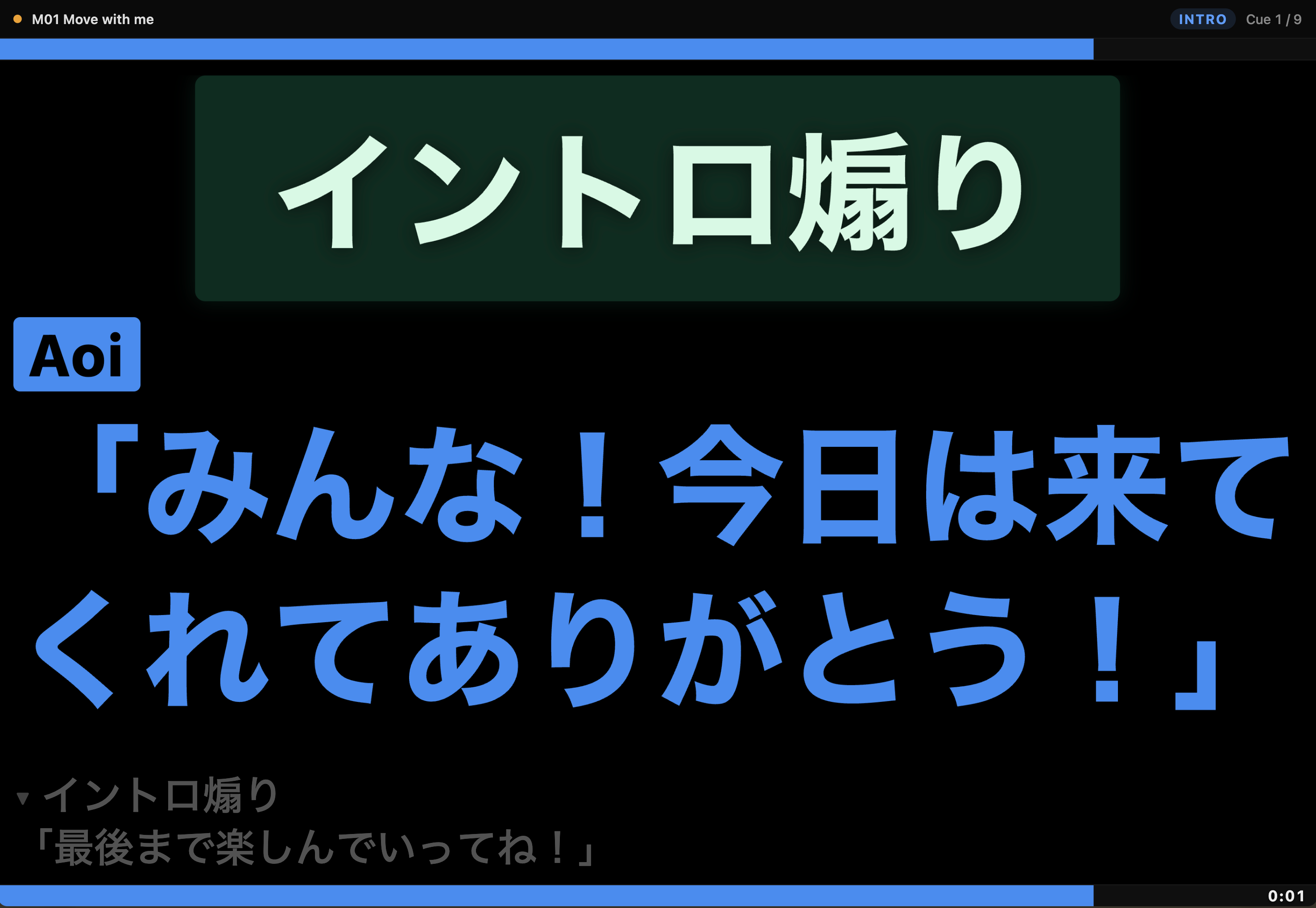
| Direction | Stage directions (intro hype, piano only, etc.) | Rendered inside a boxed callout |
| Image | Blocking diagrams, formation charts | Shows an image instead of the line text |
| (Blank line) | Layout spacing | Attributes can be set on empty lines too |
Performers and colors
Performers have a name and a color, assigned per lyric line with checkboxes. New prompts start as ALL, meaning they are visible to everyone by default. Lines sung by several people can carry multiple performers, and the prompter can split colors within one line (Multi-Performer Split Color). Switching a line to guide or direction keeps the performer assignment, so switching back to lyric restores it.
Images in prompts
Images (JPEG / PNG) display on lines whose attribute is set to Image. You can also drop an image straight into the editor; the file is copied into the project’s Assets/ folder. Display height is specified as a percentage of the content area, and multiple images share an overall cap, distributing automatically. Image heights are preserved through cloud sync and co-editing.
Edge placement (full-height at the page sides)
Tall images can be pinned full-height to the left or right edge of the page instead of sitting between lines. A first-line image can go to the left edge and a last-line image to the right edge (at most one of each per page); the lyric text reflows into the remaining width. The same layout appears on the stage monitor, the clip editor, and the WiFi stream.
- Placement control — Choose a line’s placement from the icon set “Left Edge / Left / Center / Right / Right Edge.” The edge icons gray out on lines that cannot take an edge (anything but the first/last line). It is available in both the inspector and the popup editor.
- Sized by width — Edge placement switches sizing from height to width (%), defaulting to 40%. The smaller the width, the more room the lyrics get. In the popup editor, drag the handle on the image’s inner edge to resize the width directly; it commits where you release.
- 40% cap with both edges — When both edges hold an image, each is capped at 40% (slider and drag alike), so the lyric column always keeps at least 20% of the width.
- Scales up to fill — Even a low-resolution image scales up — keeping its aspect ratio — to fill the reserved width, instead of staying pinned at its native size.
- Drop onto an edge — Drop an image onto the left/right edge band in the editor to place it at that edge (blocked if that side already has an edge image).
Block editor (3 modes)
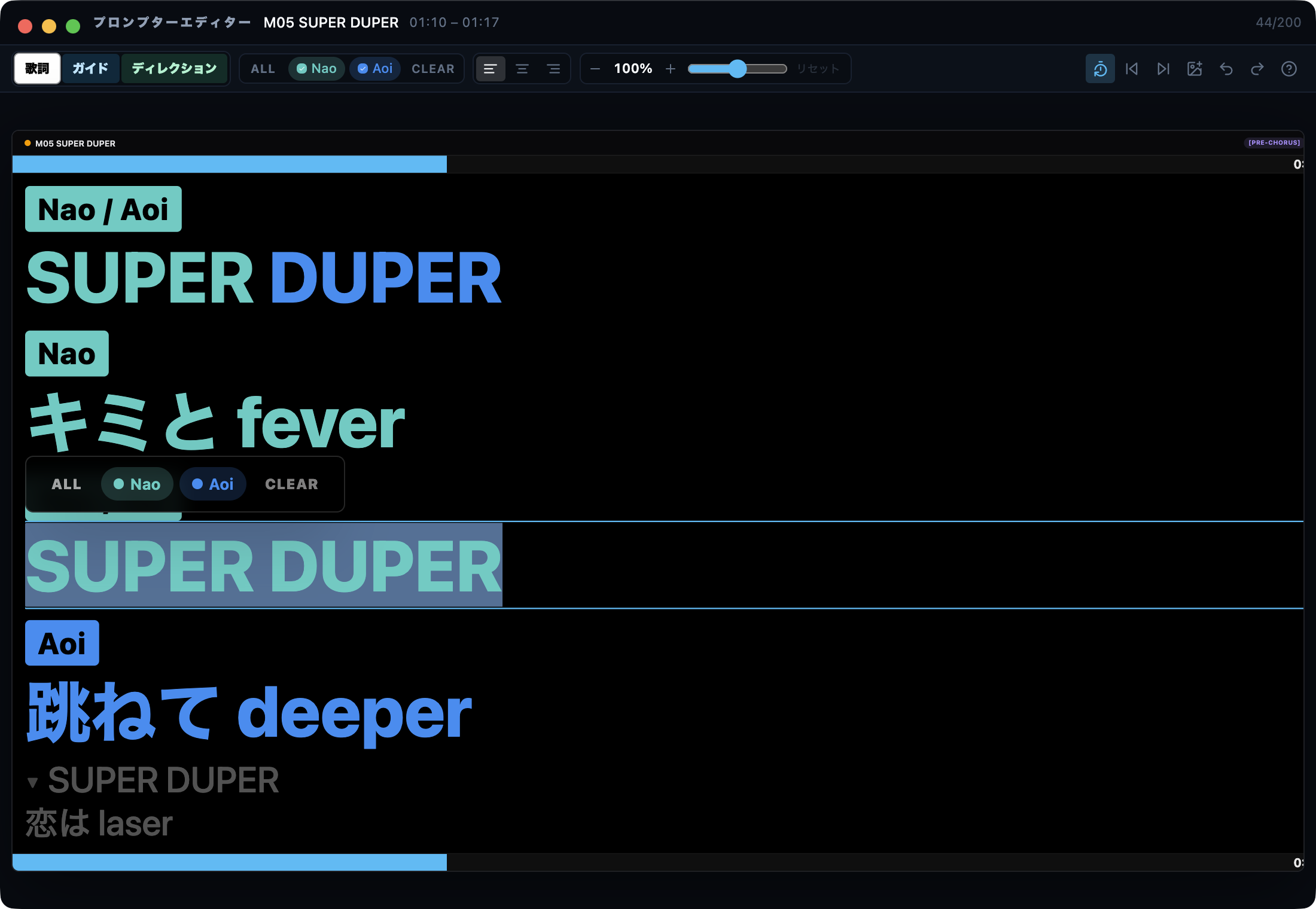
Prompt editing in the inspector switches between three modes: Editor, Text, and Popup. The default is the embedded editor, which lets you edit with a near-show appearance.
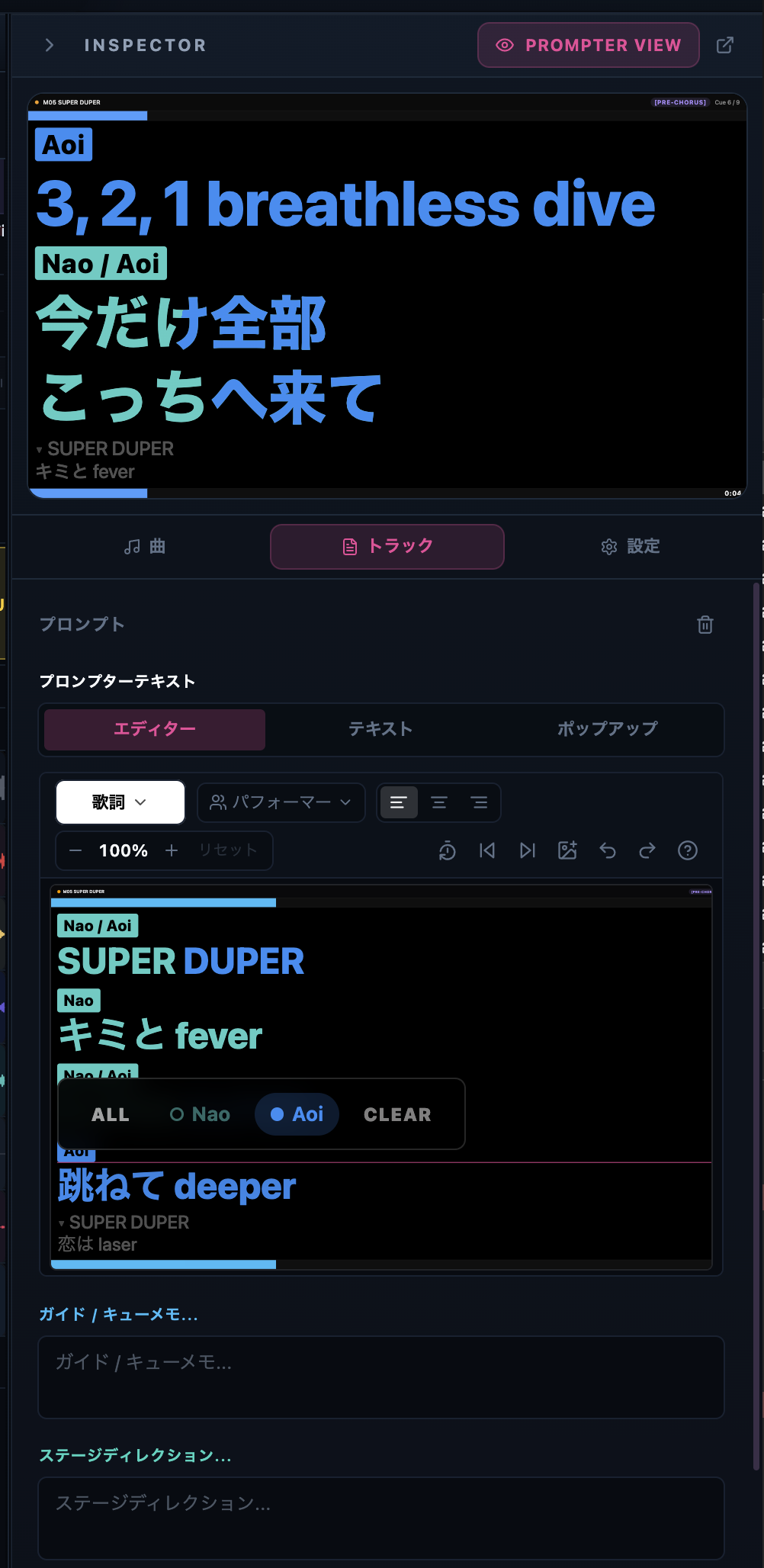
- Editor — A visual editor embedded in the inspector. Edit line type, performers, alignment, and font size while seeing a near-show look (white = lyric / blue = guide / green = direction). Empty blocks show a placeholder you can click to begin typing. If the right panel is too narrow it widens automatically, switching to Text only when it still cannot fit.
- Text — Plain text-area editing. Up to 20,000 characters; line breaks split lines. Inside the text box, ⌘Z / ⇧⌘Z performs text-input undo/redo (not project-wide undo).
- Popup — Opens a standalone editor window. Edit without stopping the main window’s playback or operation; it follows the clip you select on the timeline automatically. Closing it returns to Text mode.
The Editor / Popup have an always-on fixed toolbar: line type (lyric / guide / direction), performers (ALL / performer / clear), placement (left edge / left / center / right / right edge — edges apply only to a first/last-line image), font size (− / % / + slider), insert image, undo / redo, and the shortcut list (?). At narrow widths the font-size slider is omitted.
Bulk operations and moving while editing
- Select all — ⌘A selects every line in the block.
- Bulk change — Apply performers, line type, font size, and alignment to all selected lines at once.
- Explicit line break — Alt+Enter inserts a line break within a single line; a break marker on the editor distinguishes it from automatic wrapping (the show layout is unchanged).
- Move to the prev/next prompt — Shift+Enter / Shift+Alt+Enter moves the clip you are editing to the previous/next prompt without stopping playback. An option moves the playhead along with it.
- Cursor movement — Pressing up/down at the start/end of a text line moves the edit cursor to the previous/next line.
- Time range — Drag on the timeline or type exact values. Split at the playhead with ⌘B and merge with ⌘J.
Add images via the toolbar’s insert-image button or by dragging and dropping straight into the editor. Dropped / inserted images appear immediately in the editor, and the file is copied into the project’s Assets/ folder.
Lyric timing (manual, karaoke-style)
Place lyrics by hand without AI. Open “Lyric timing” from the timer icon in the prompter lane header, then tap line by line while the audio plays to set each line’s timing. The result becomes prompt blocks directly.
- Enter — Place the next line at the current playback position.
- G — Start a new block break here (the head of a new prompt block).
- Space — Play / pause.
- ← / → — Seek the playback position backward / forward.
- ⌫ — Undo the last placement.
Output windows (pop-out)
Open a standalone prompter window from the Prompter Server popover in the header, or from the pop-out button next to the in-editor Prompter View. The window keeps a 16:9 ratio when resized; drag it to a second display and go full screen for the stage. It opens on the same computer, so it works even with network sharing turned off.
Identical across every surface (unified layout)
The Stage Monitor, the browser Prompter View, the inspector thumbnail, and the block editor (embedded and popped out) all render through the same fit calculation, the same 1920×1080 design canvas, and the same text styling — so line breaks and text size match everywhere. The Stage Monitor and browser view letterbox that canvas into the window (with black bars top/bottom or left/right as needed), so reshaping or resizing the window never changes where lines wrap. Even scaled down, a safety margin keeps the last line from being clipped at the edge, guaranteeing no lyric line falls off screen.
WiFi / LAN prompter
Stream the live prompter to phones, tablets, and other computers on the same network.
- Enable prompter sharing in Settings → Prompter Server (default port 17321).
- Turn on “Publish to network” in the header’s Prompter Server popover. By default it is available only on this computer; it is shared with the network only while this switch is on.
- Open the URL shown in the popover in the device’s browser. URLs are available separately for Default and for each cue target (per performer / staff view).
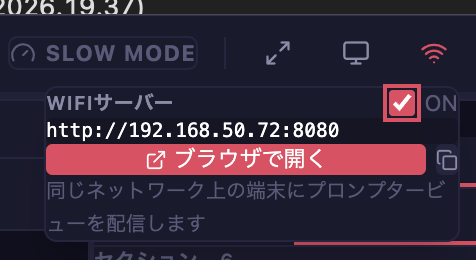
If a device cannot connect, check that it is on the same network as the CueFlow machine, that the firewall allows the port, and that the router’s client/AP isolation is disabled.
Caution
LAN prompter sharing (Publish to network) and a cloud co-editing connection cannot be enabled at the same time. This is a safety rule that prevents crew devices from following two display sources — the local stream and the cloud — at once. Decide which one you are using before enabling it.
Slow Mode (slow playback for rehearsal)
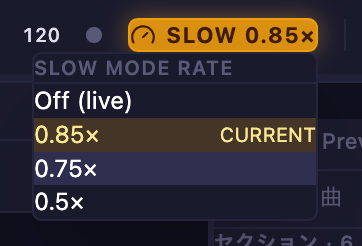
Use Slow Mode to rehearse with slowed-down audio. It plays at 0.9× / 0.85× / 0.75× / 0.5× while preserving pitch. While active, the header is tinted amber and prompter clients show a pill such as “SLOW 0.75×”. LTC send/receive, MIDI output, and click/count sounds are disabled automatically and restored on exit. Reopening a project always returns to normal speed (1×) as a safety measure.