
Interface
Interface Overview
The main window is divided into six areas. Knowing each one keeps you fast and confident during a show.
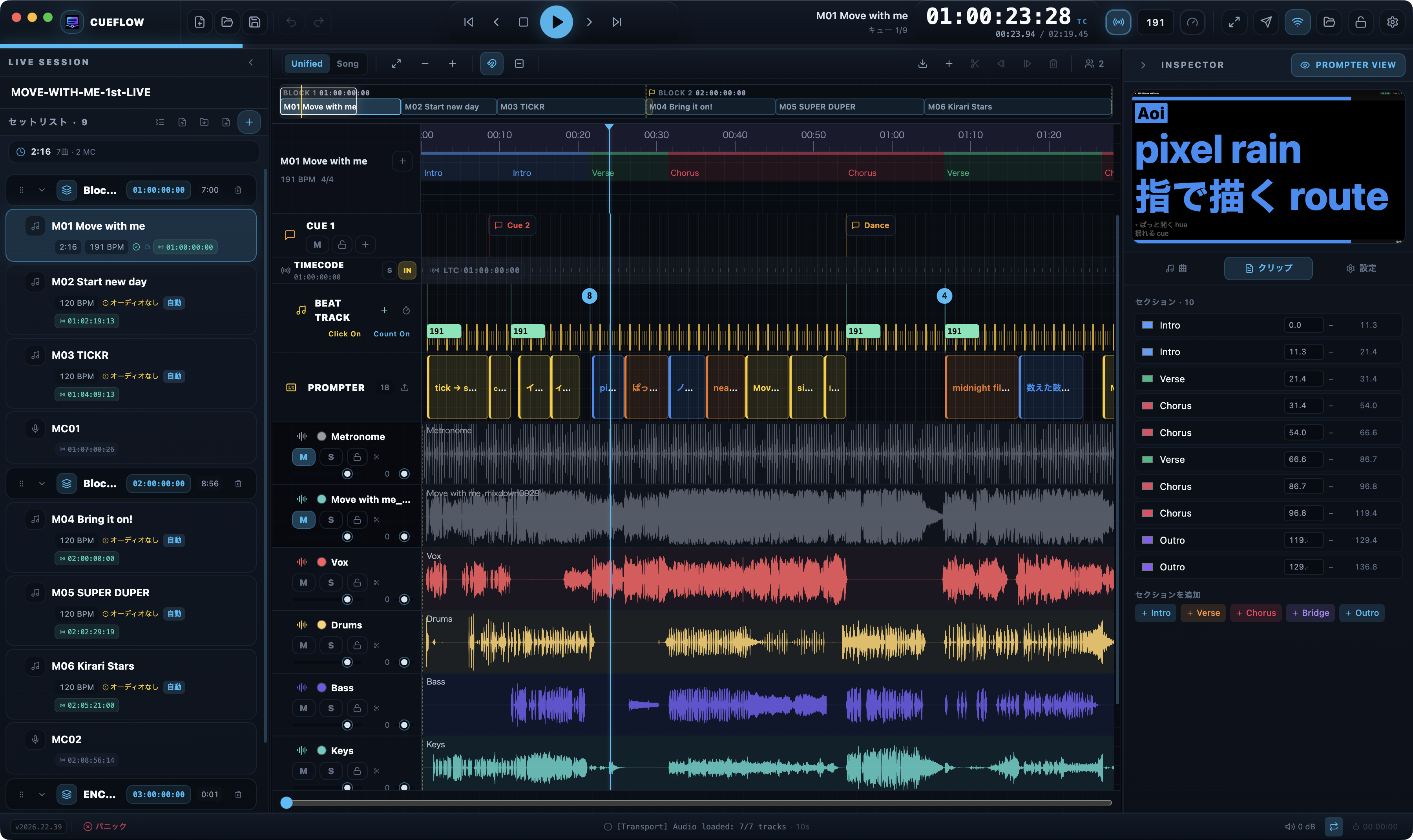
| Area | Position | Role |
|---|---|---|
| App header | Top | Transport controls, program name, the timecode display (jump with ⌘G), chase, BPM, Slow Mode, performance mode, lock, and settings. Cloud buttons (cloud project settings / connect / operator / Master Lock) appear only on cloud-enabled projects. |
| Setlist panel | Left | Manages the day’s programs (Song / MC / Break) grouped into blocks. Each block carries a start timecode that is propagated to the programs inside it. |
| Timeline editor | Center | Edits the tracks of the selected song (or the whole block in Unified view). See “Timeline Editing” for details. |
| Inspector | Right | Edits the selected song, track, clip, or prompt block in detail. Press M to swap it with the mixer view. |
| Prompter View | Top right | A scaled preview of the live prompter on a 16:9 virtual stage — line breaks and fitting match the full-screen browser output exactly. |
| Status bar | Bottom | App version, the PANIC button, the latest log line, master mute / volume, the Gapless toggle, and the show timer. On cloud-enabled projects, a cloud status (sync state and connected members) sits in the bottom-right; its hover panel opens “Cloud Project Settings” and “Organization settings” directly. |
Key header buttons
- Transport — Previous song / previous section / stop / play / next section / next song. During an MC, the section buttons page through the MC text.
- Timecode display — Shows the current TC prominently. Press ⌘G to jump to any timecode.
- Undo / Redo — Long-press (0.5 s) either button to open the edit-history panel and step back several edits at once.
- Lock Mode — The padlock icon. Prevents accidental clip edits — recommended during the show.
- Prompter Server — Opens the popover that manages prompter pop-outs and network sharing.
- Settings — The gear icon (⌘,). Opens the tabbed application and project settings.
Setlist panel
The setlist is a group structure of blocks, each with a start time. Add a block with “+ → Add Timecode Block” and a song with “+ → Add Song”. Drag the ≡ handle to reorder and use the chevron to collapse a block. Compact view prioritizes song titles for at-a-glance reading.
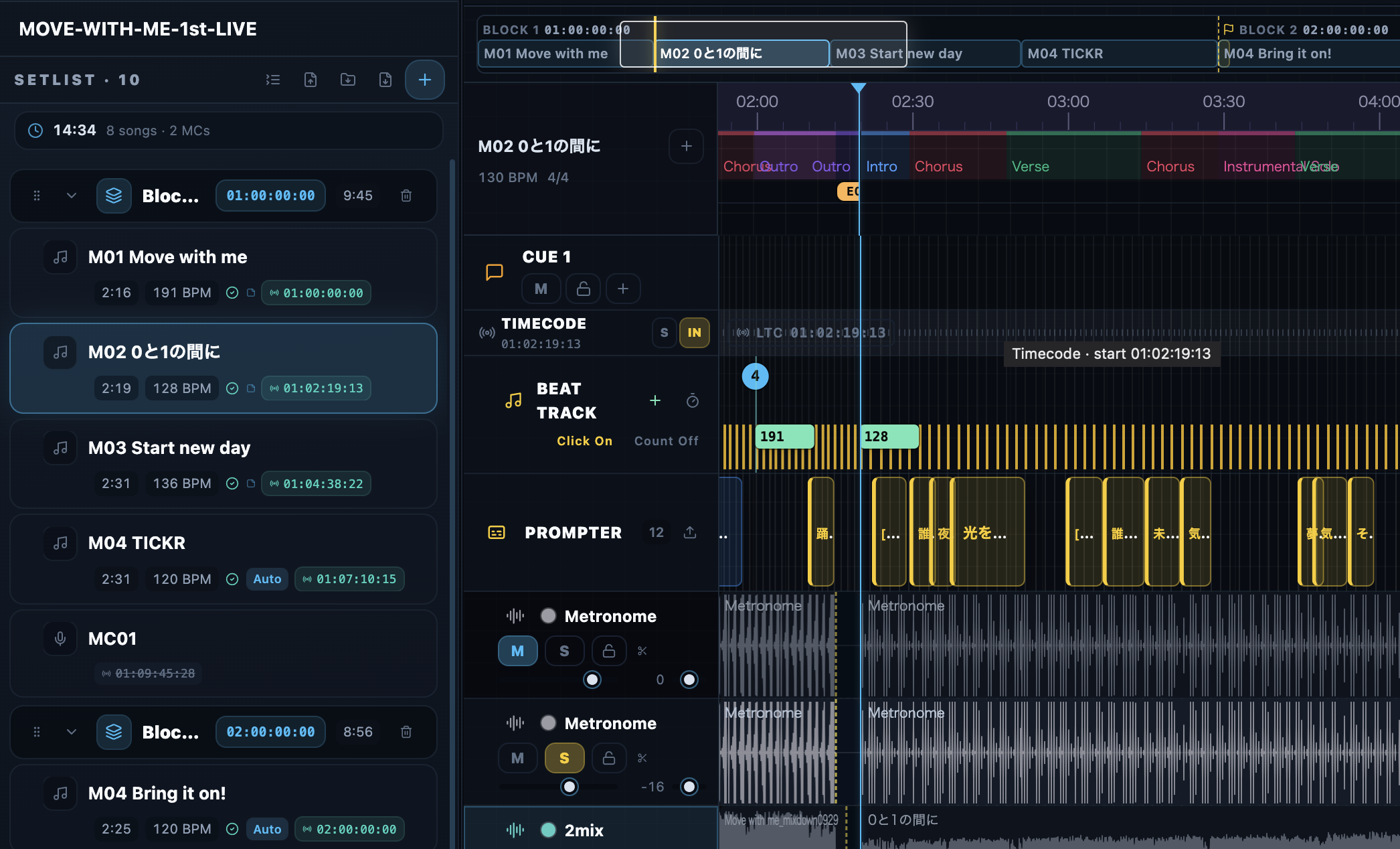
Block start modes and In-Song songs
Each block starts in one of two modes — “1h” or “TC.” In addition, adding an In-Song divider inside a song splits it into an independent virtual song (an In-Song song) that also appears in the setlist.
- 1h mode — As before, the block start is auto-raised to an integer hour.
- TC mode — Click the header timecode to type an absolute start as HH:MM:SS:FF (frame-snapped). If an earlier block grows and overlaps, the later block owns the overlap, and the earlier block’s overlapped tail is treated as “not there” for timecode jumps, memory locations, and next/previous cue navigation (the data is preserved and returns if you move the blocks apart).
- In-Song songs (dividers) — Use “In-Song +” in the timeline header to add a divider at the edit cursor / playhead. Everything after it becomes a virtual song with its own setlist row, memory location, and per-song cue-sheet (Excel) sheet. Rename it by double-clicking; each virtual song has its own progress gauge.
Inspector and mixer
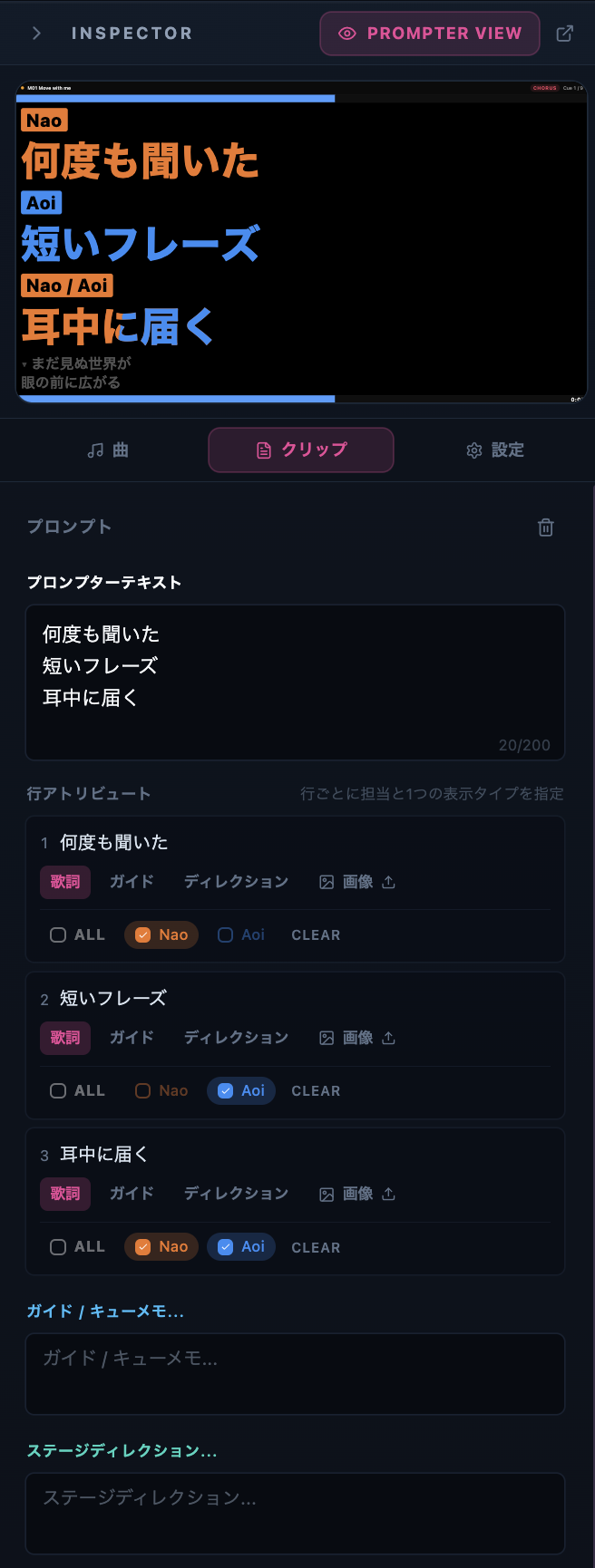
The right panel adapts to the selection. Select a song to edit BPM, time signature, click settings, performers, start mode, and EoS; select an audio track to edit volume, pan, routing, trims, and fades. Press M to switch to the mixer view, which lines up volume controls for every track.
Auxiliary windows
| Window | How to open | Contents |
|---|---|---|
| Prompter window | Prompter Server popover → pop out | A dedicated show-display window. It keeps a 16:9 aspect ratio when resized and is ideal for full screen on a second display. |
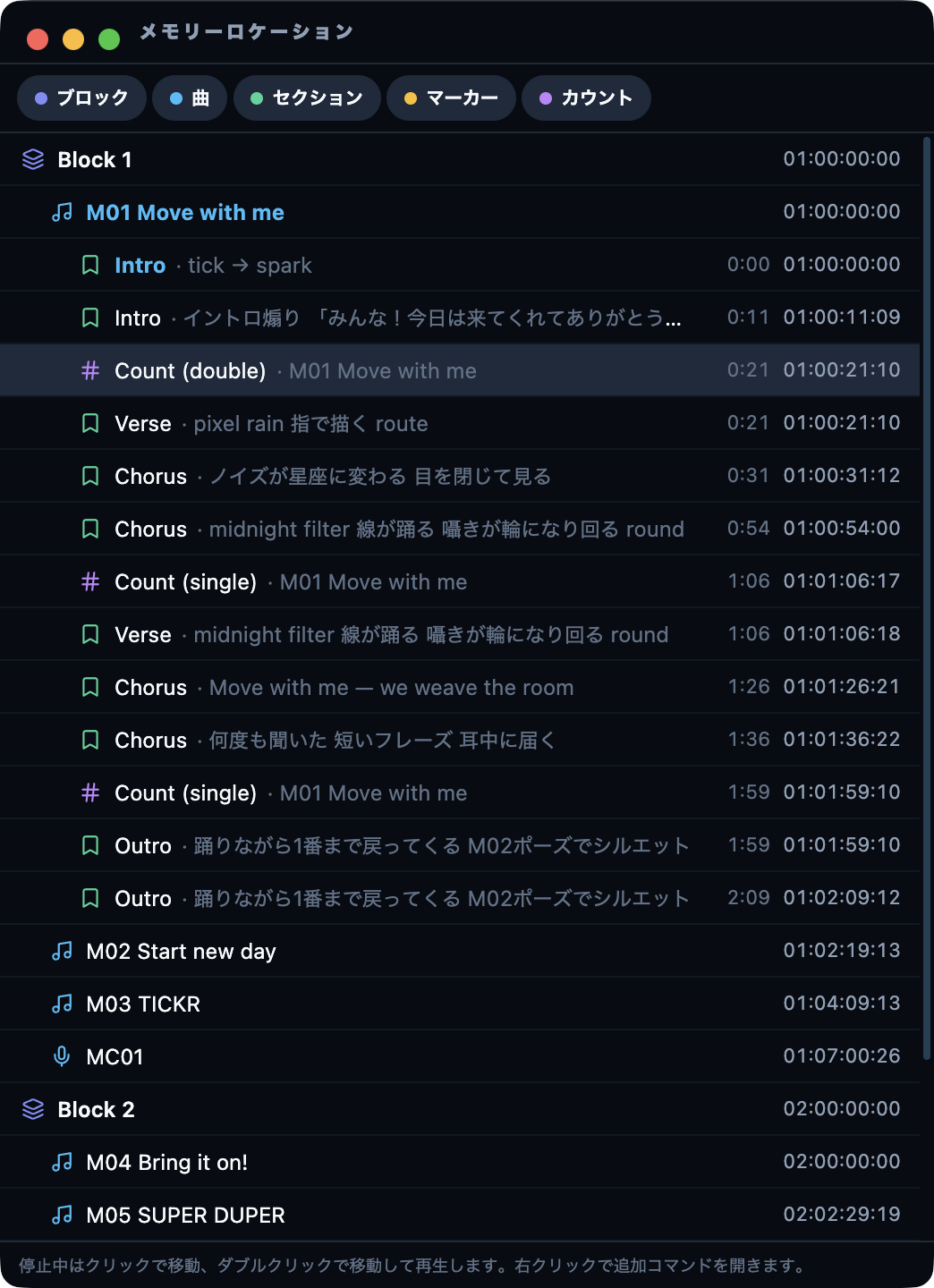
| Memory Locations | View menu / ⌘⇧M | A chronological jump list of blocks, songs, sections, and markers. Double-click to Jump or Jump and Play. |
| Audio Routing | View menu / ⌘⇧R | A standalone window for assigning audio sources to physical output channels, with node-editor and matrix tabs. |
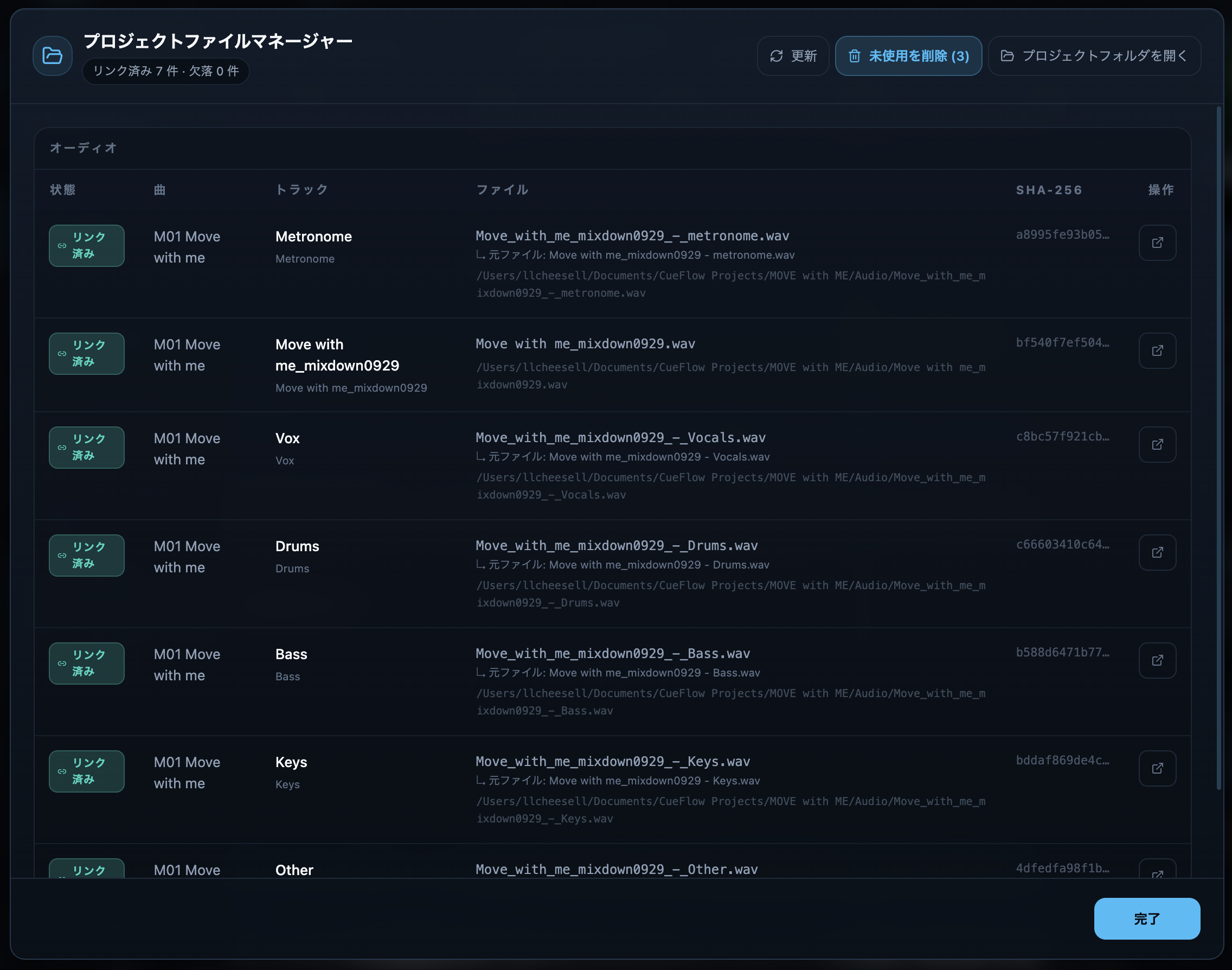
| Project File Manager | Folder icon in the header | Lists the link status of audio and images and auto-relinks matching files. Broken links are highlighted in red. |
| Comments window | Open from Cloud status | A standalone window listing a cloud project’s comments with search and filters. |
| Cloud Project Settings | Cloud status in the bottom-right → “Cloud Project Settings” | One dialog covering the project overview, “Share & invite” (member invites and roles — Editor is one seat, Commenter / Viewer are free), and “Advanced permissions” (per-track permissions). The former separate access and share windows are merged here. |
| Organization settings | Cloud status in the bottom-right → “Organization settings” (owners / admins only) | Lists organization members and project-invited members separately, each with seat usage, plus revoking pending invites and an audit log. |
Tip
Panels resize by dragging. Toggle the left panel with ⌘\ and the right panel with ⌘⇧\ to maximize the timeline. For a dedicated show-operation layout, use performance mode (F11).