
Organizations
Organizations & Plans
Cloud collaboration, billing, and AI credits are managed per organization. This page covers roles, the organization-management dialog, plans and pricing, seat changes, AI credits, billing, and account actions (email change and device management). All prices exclude consumption tax.
Roles (two levels)
Roles work on two levels. Organization roles (Owner / Admin / Member) apply to every project in the organization, while project roles (Editor / Commenter / Viewer) apply to one project only. A seat is consumed by each organization member (Owner / Admin / Member) and by each project Editor. Commenter / Viewer and view-only or comment-only guests are free and unlimited (how seats are counted is explained below).
Organization roles (apply across the whole organization)
| Role | Can do | Seat |
|---|---|---|
| Owner | Everything in the organization, including ownership transfer, deleting the organization, and access to every cloud project in it. | Consumes |
| Admin | Manage members, access rights, organization settings, and billing (plan change / seats / billing management). Can access every project in the organization. | Consumes |
| Member | Can edit every project in the organization. Cannot change billing or organization settings. | Consumes |
Project roles (apply per project)
| Role | Can do | Seat |
|---|---|---|
| Editor | Can edit the one project they were invited to. The per-area matrix defaults to all areas editable. | Consumes |
| Commenter | View and comment only. Cannot be granted edit or operate rights. | Free |
| Viewer | View only. | Free |
Guest invites and CueFlow accounts (no license required)
Team / Enterprise organizations can invite licenseless collaborators as Viewer / Commenter guests. A guest joins with just an invite code and a display name — the app must be installed, but no license purchase is needed. From the guest badge in the header they can rename themselves and sign out. Guest invites are unlimited and consume no seats. Joining as an Editor requires either a free CueFlow account (email verification only — "Create account / Sign in (free)" on the welcome screen) or a CueFlow license. The seat it uses belongs to the INVITING organization, so the person joining pays nothing. Organization roles (Owner / Admin / Member) and creating, deleting or billing projects still require a CueFlow license.
The organization-management dialog
Open it from the cloud pill in the bottom-right → “Organization settings” (Owner / Admin only; you can open it even without a project open). Everything is on one screen:
- Organization name — Shows and renames the organization.
- Plan status — Current plan / seats used vs total / renewal date / monthly or annual. The [Manage billing (Stripe portal)] and [Change plan] buttons sit side by side. Even an unsubscribed organization can reach the purchase flow from here.
- Members (two groups) — Organization members (Owner / Admin / Member) and project-invited members (per-project Editor / Commenter / Viewer) are listed separately. Each shows whether it uses a seat — and whether that seat is already held through another membership, so it does not count twice (shared). From here you change roles, remove members, and invite; when Editor seats run short, a one-click “add a seat and invite” path appears.
- Pending invites — A list of invites you have sent that have not yet been accepted; revoke any you no longer need on the spot.
- Activity log (audit log) — A history of actions — invites, role changes, ownership transfer, and more. Each row shows a display name; no management IDs appear.
- Storage — A usage bar plus a per-project breakdown. Deleting projects or assets frees the space again.
- AI credits — Balance / monthly trend graph / per-user breakdown, plus [Add credits] (pack purchase checkout).
Plan and seat changes live in dedicated screens; the main screen only shows the current plan and seat status. Members (organization members other than Owner / Admin), project members, and guests never see billing buttons. Owners / Admins can access every cloud project in the organization.
![The organization-management dialog: organization name, plan status with seats used (e.g. 2/8) and [Change plan] / [Add seats], organization members and project-invited members listed separately with their seat usage, pending invites you can revoke, and storage usage (e.g. 366MB/50GB) with a per-project breakdown — all on one screen.](/docs/organization-admin.png)
Plans (Free / Pro / Team / Enterprise)
Full pricing is also on the website’s pricing page; the essentials are summarized here. Prices exclude consumption tax.
| Free | Pro | Team | Enterprise | |
|---|---|---|---|---|
| Monthly | ¥0 | ¥1,980/mo | ¥26,000/mo | Contact us |
| Annual | — | ¥19,800/yr | ¥234,000/yr (¥19,500/mo) | Contact us |
| Seats | 1 | 1 license, 2 machines | 4 Editor seats + add-ons | Custom |
| Cloud collaboration | No | No (join only) | Yes | Yes |
| AI credits | None | 200 at signup (~4 songs) | 1,500/mo (~30 songs), shared | Custom |
| Shared storage | — | — | 100GB | Custom (500GB+) |
| Payment | — | Stripe (card) | Stripe (card) | Stripe + invoice |
Pro is a subscription: it grants every feature except cloud collaboration for as long as the subscription is active, and automatically drops to Free on cancellation or non-payment. Joining Pro grants 200 AI credits; when they run out AI features stop until you buy a credit pack. Early-beta unlimited licenses (perpetual_vip → Team-equivalent / perpetual_paid → Pro-equivalent) are unaffected.
How seats work, and changing them
One seat = each organization member (Owner / Admin / Member) plus each project Editor, deduplicated across the whole organization. A person who is an Editor on two projects, or who is both an org member and a project Editor, still counts as one seat. Commenter / Viewer never consume a seat (free and unlimited). An Editor invite uses one seat when it is accepted — not when it is sent. Team includes 4 seats; a fifth member onward needs an add-on seat (¥2,980/mo monthly, about ¥2,235/mo annual).
- Adding seats — Set the seat count in the organization-management dialog; added seats are billed immediately, prorated for the remaining period.
- Removing seats — Reduce them anytime the same way. Removed seats are credited toward the next invoice. You can change seats even mid-annual-contract.
- Limits — Seats can be set from 4 to 200.
- Short on seats — When an Editor invite needs a seat you do not have, a one-click “add a seat and invite” path appears.
AI credits
AI Import analysis consumes AI credits (CueFlow Credits), roughly 50 credits per song.
- Pro feature trial — Starting the trial grants 50 credits for the 14-day Pro feature trial. Cloud collaboration is not included.
- Pro signup grant — Joining Pro grants 200 credits (about 4 songs).
- Team monthly grant — Team receives 1,500 credits (about 30 songs) shared across the organization every month. The monthly grant is valid only within the current billing period and does not roll over.
- Credit packs — Buy one-time packs: 500cr ¥5,000 / 1,500cr ¥15,000 / 5,000cr ¥50,000. Purchased credits never expire, and consumption draws from the monthly grant first, then packs.
- Running out — When credits are exhausted, AI Import stops and “Add credits” takes you to pack purchase in the organization-management dialog. Failed analyses do not consume credits.
Purchasing and managing billing
- In-app purchase — From [Change plan] in the organization-management dialog, pick monthly / annual and the seat count to subscribe. The payment page (Stripe Checkout) opens in your browser.
- Start from the web — You can also start from the pricing page → “Start with Team”, or /start. Enter the organization name, Owner email, billing cycle, and Editor seats before Stripe Checkout. For Pro, buy at /start?plan=pro and activate the emailed key in Settings → License & Usage.
- Manage billing (Stripe portal) — Invoices, payment methods, and cancellation are handled via [Manage billing], which opens the Stripe billing portal in your browser.
- Auto refresh — When you return to the app from checkout or the billing portal, seats, plan, and balance refresh automatically — no manual reload needed.
Past-due payments and the grace period
If an organization’s payment becomes past_due, features are not cut off immediately. A grace period applies, during which every member sees a “there is a problem with your organization’s payment” warning banner. Owners / Admins should update the payment method via [Manage billing] within the grace period. After the grace period, paid features such as collaboration stop.
Account (email change & device management)
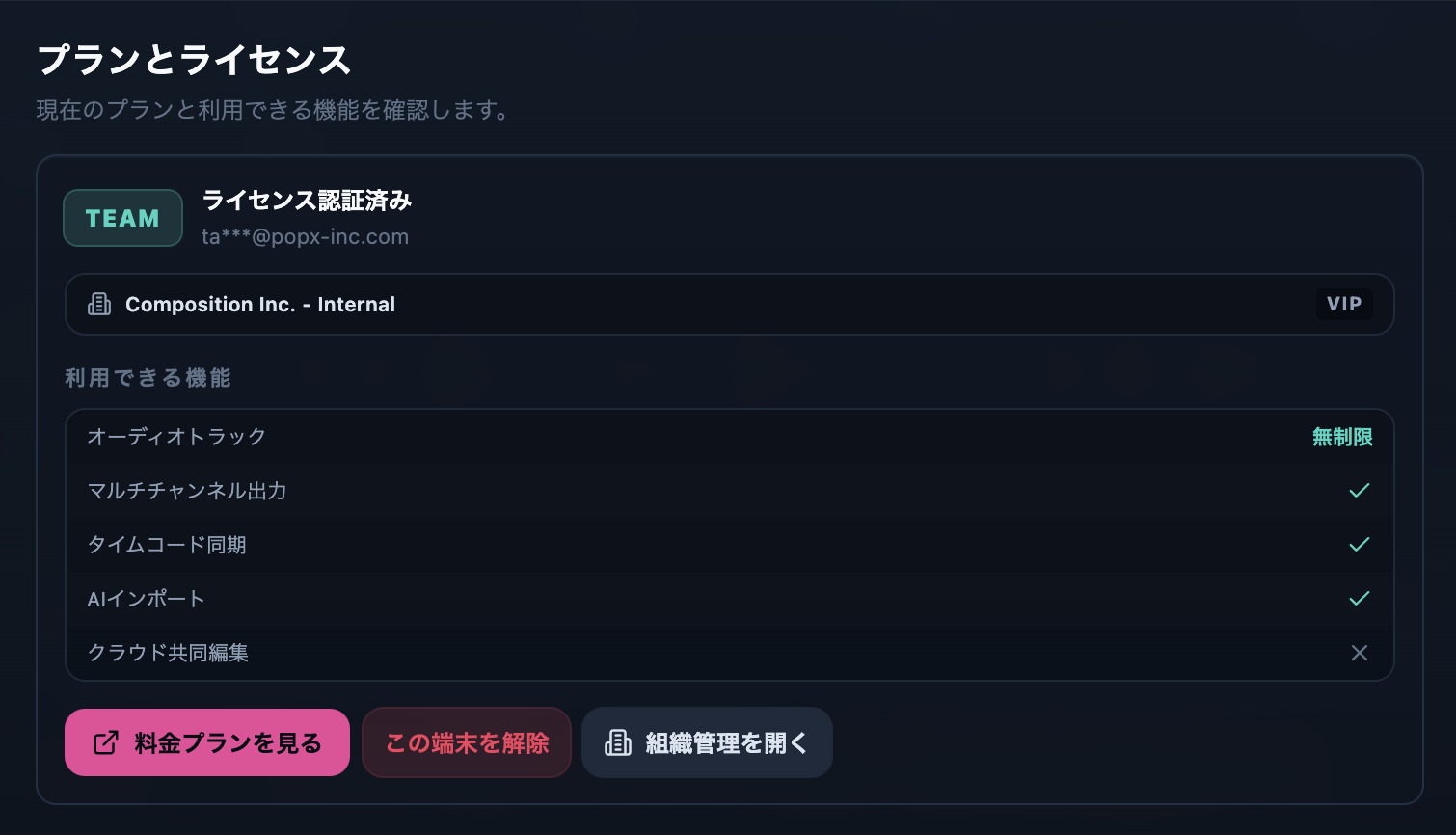
License and account actions live in Settings (⌘,) → “License & Usage” (Plan & License).
- License activation — Enter the activation key to activate. The app runs as Free even without a registered license. One license activates on up to 2 machines by default. If you lost the key, reissue it on the web License Recovery page.
- Email change — Change your license email from Settings ▸ Cloud Collaboration. The change takes effect only after you open the confirmation link sent to the new address. Organization roles, invites, and project permissions are preserved. If the new email is already used by another active license, you get an error. The steps are in the next section.
- Device (activation slot) management — View your activated devices and deactivate unused ones (including a lost or broken PC) yourself to reclaim a slot, then activate a new machine. The same deactivation is available on the web License Recovery page even when you cannot activate the app.
No management IDs appear on any screen or notification; everything shows display names, masked emails, and role / plan labels.
The License Recovery page emails a recovery link to your registered address; from that link you can reissue the key and deactivate devices. It works even when you cannot launch or activate the app. Open License Recovery →
How to change your email address
The email address tied to your license can be changed from the app or from the web License Recovery page. Either way, the change takes effect the moment you open the confirmation link delivered to the NEW address.
- From the app — Open Settings (⌘,) → Basic settings → “Cloud Collaboration”, replace the email address, and save. A confirmation email arrives at the new address; open its link within 24 hours. Until you do, the registered address stays as it was.
- From the License Recovery page — If you cannot activate the app and therefore cannot reach the settings screen, send a recovery link to your current registered address and request the email change from the page it opens. The confirmation email still goes to the new address.
- After the change — Your license, purchased plan, AI credit balance, organization roles, invites, and project permissions all carry over. Activated devices stay activated — no re-activation needed.
You do not need the old mailbox
The confirmation email goes to the NEW address, so you never have to open the old mailbox. Even if the previous address is gone — you left the company, the domain was retired — you can complete the change yourself as long as the app is activated. Only when you can neither activate the app nor reach the old address does support have to make the change for you, and that requires details identifying your purchase. See the support steps →
Undoing a change (within 14 days)
Once a change is confirmed, a notice also goes to the previous address. If you did not make the change, the link in that notice undoes it within 14 days. Undoing restores the old address, reissues the license key, and deactivates every activated device; the new key arrives at the restored address, so activate each machine again. If the change was yours, treat the notice as a record and ignore it.
Related page
For the hands-on collaboration steps (saving to the cloud, syncing, live editing, comments, version history, operator control), see Cloud Collaboration.